



A file can be connected to a Task, Session, Meeting, Participant, or another supported record without creating a second copy. Each link is scoped to that specific record.
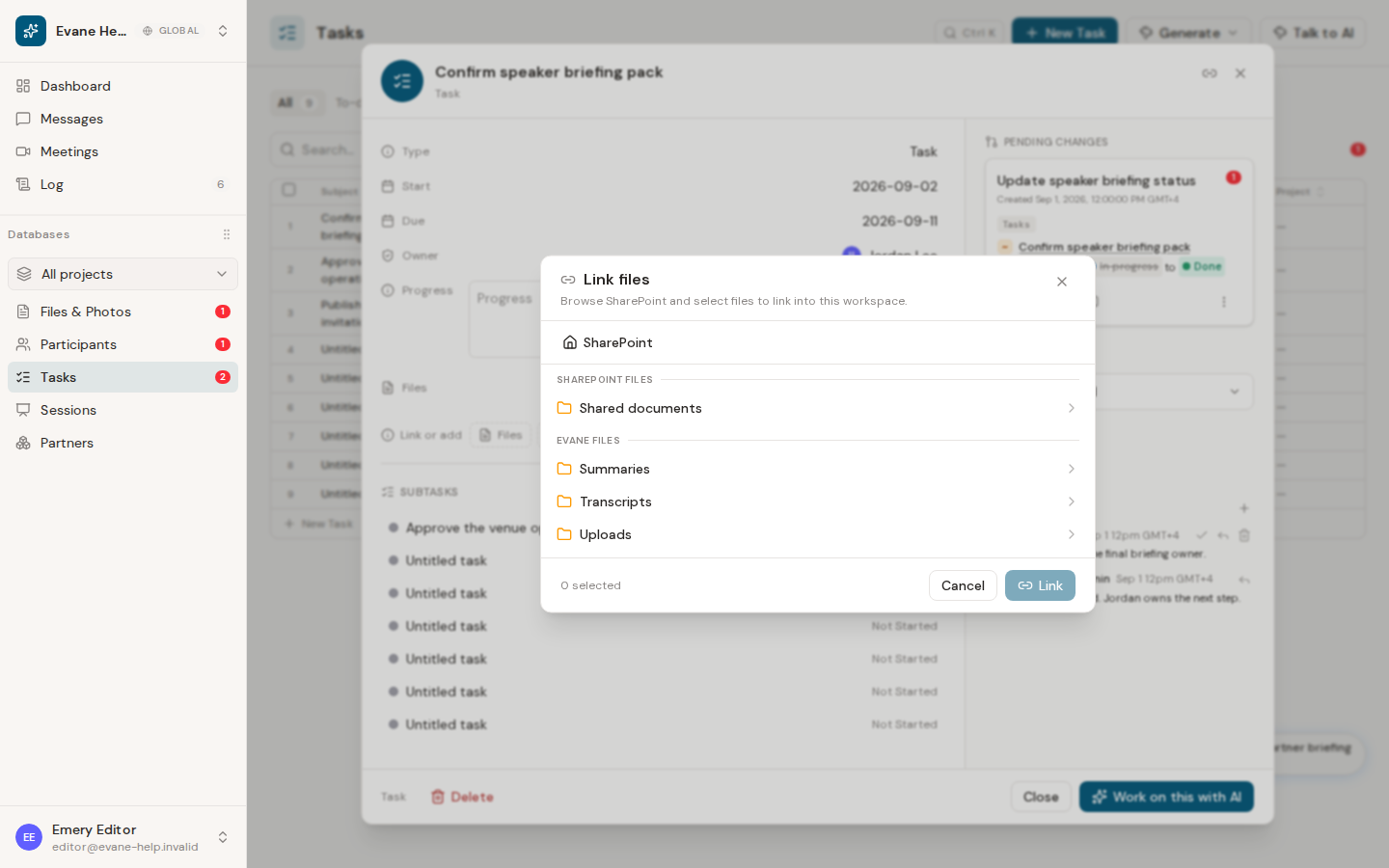
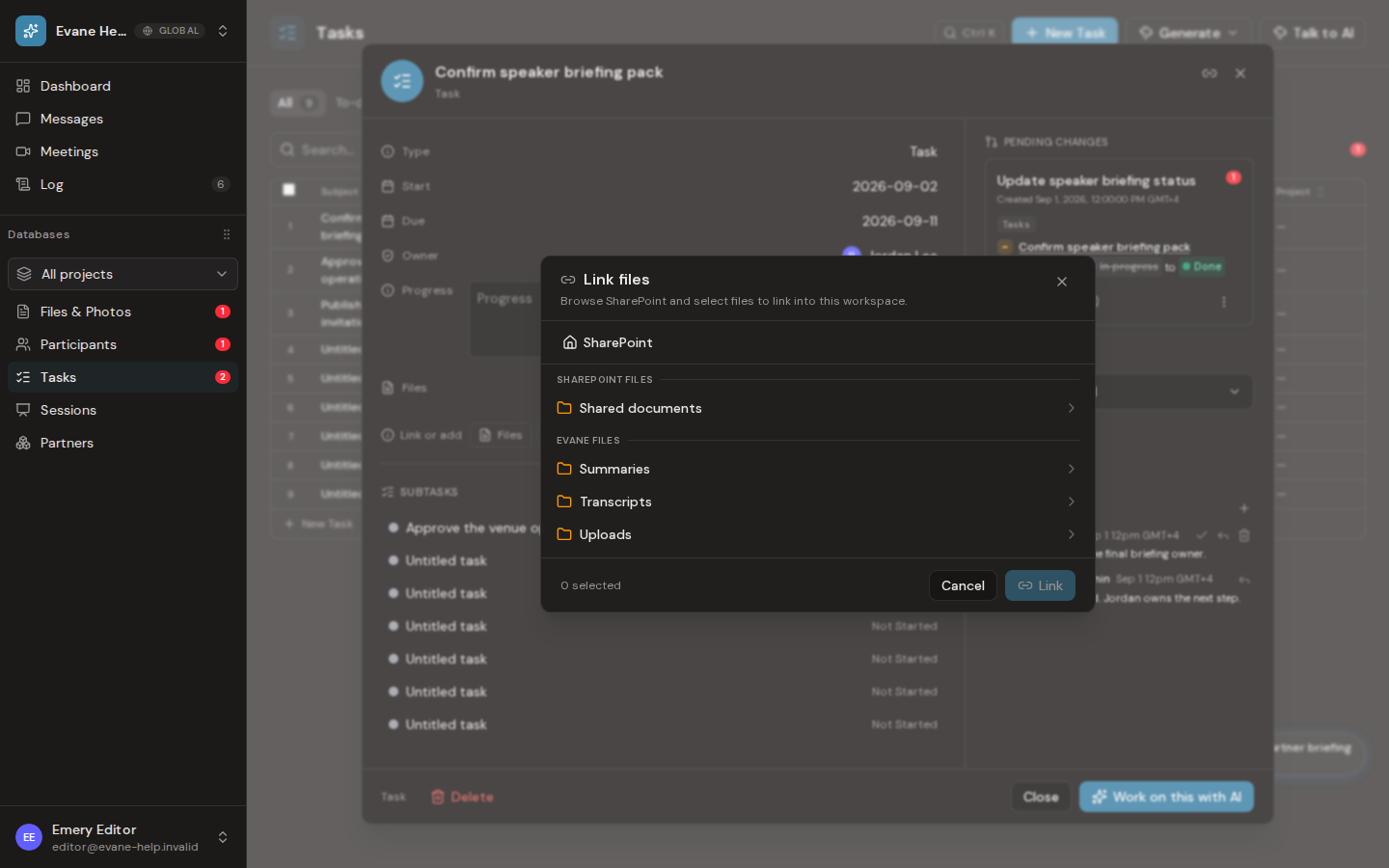
Link an existing file
- Open the record's detail dialog and find its Files panel.
- Select the add or link action.
- Browse the shared file picker, select one or more available files, and confirm.
- Verify that the selected file chips appear in the detail view.
The picker uses the active workspace's shared file library, including files synchronized from connected sources. Workspace membership is the read boundary inside Evane; opening the original SharePoint, Google Drive, or Lark page still follows the individual member's provider access.
Remove a link without deleting the file
Use the remove action beside a linked file and confirm it. This deletes the relationship from the current record; it does not delete an external source file or remove an Evane file from the main Files library.
If the file remains after unlinking, another record may still link to it. If a removed link reappears, reopen the record to confirm the server accepted the change and check whether your role permits editing that entity.