



Use Upload files to add local files or a folder tree to the current folder in the Files library. Uploaded content is stored as Evane-owned files rather than written back to a connected provider.
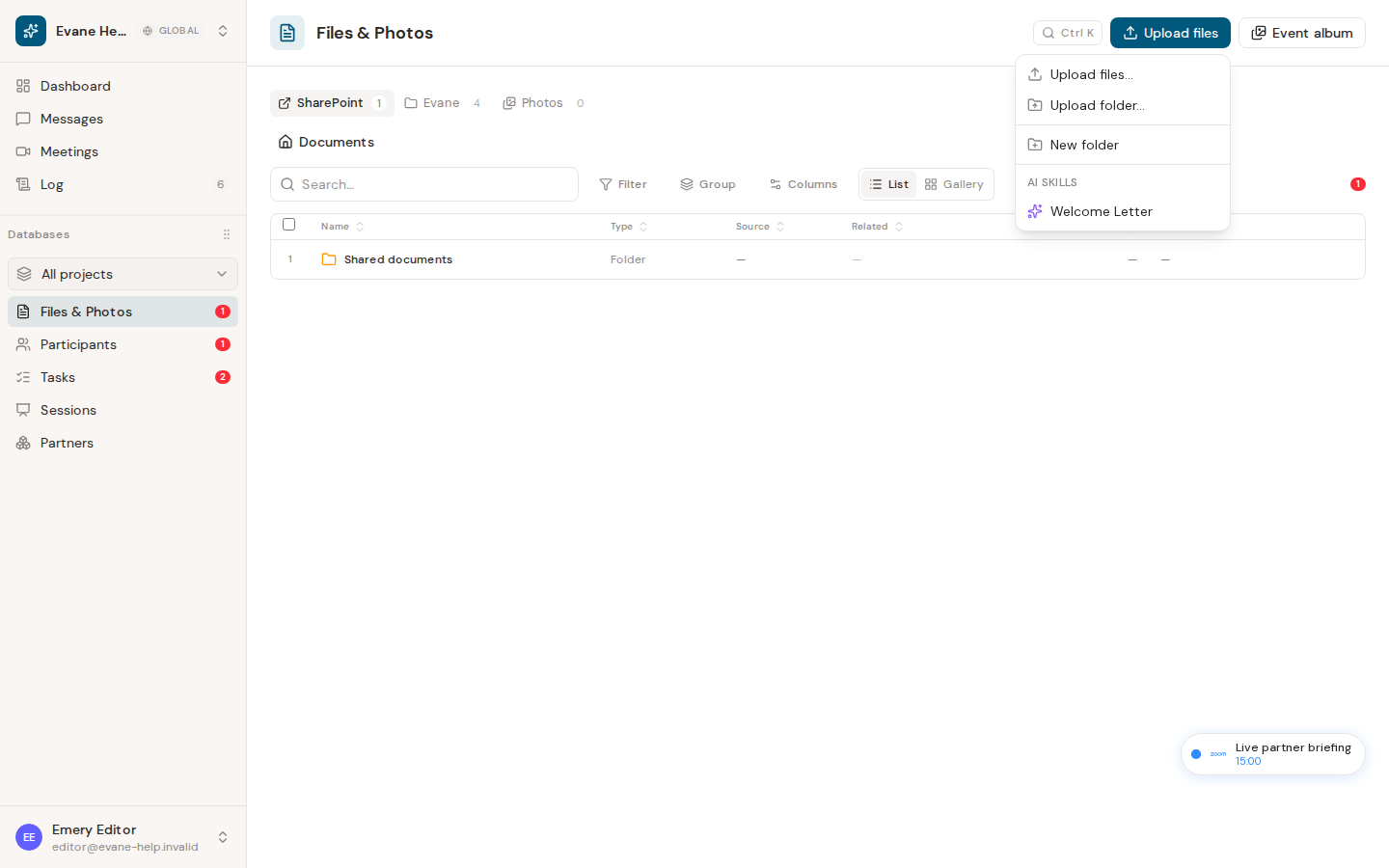
Upload into the right location
- Open Files and navigate to the folder that should contain the document.
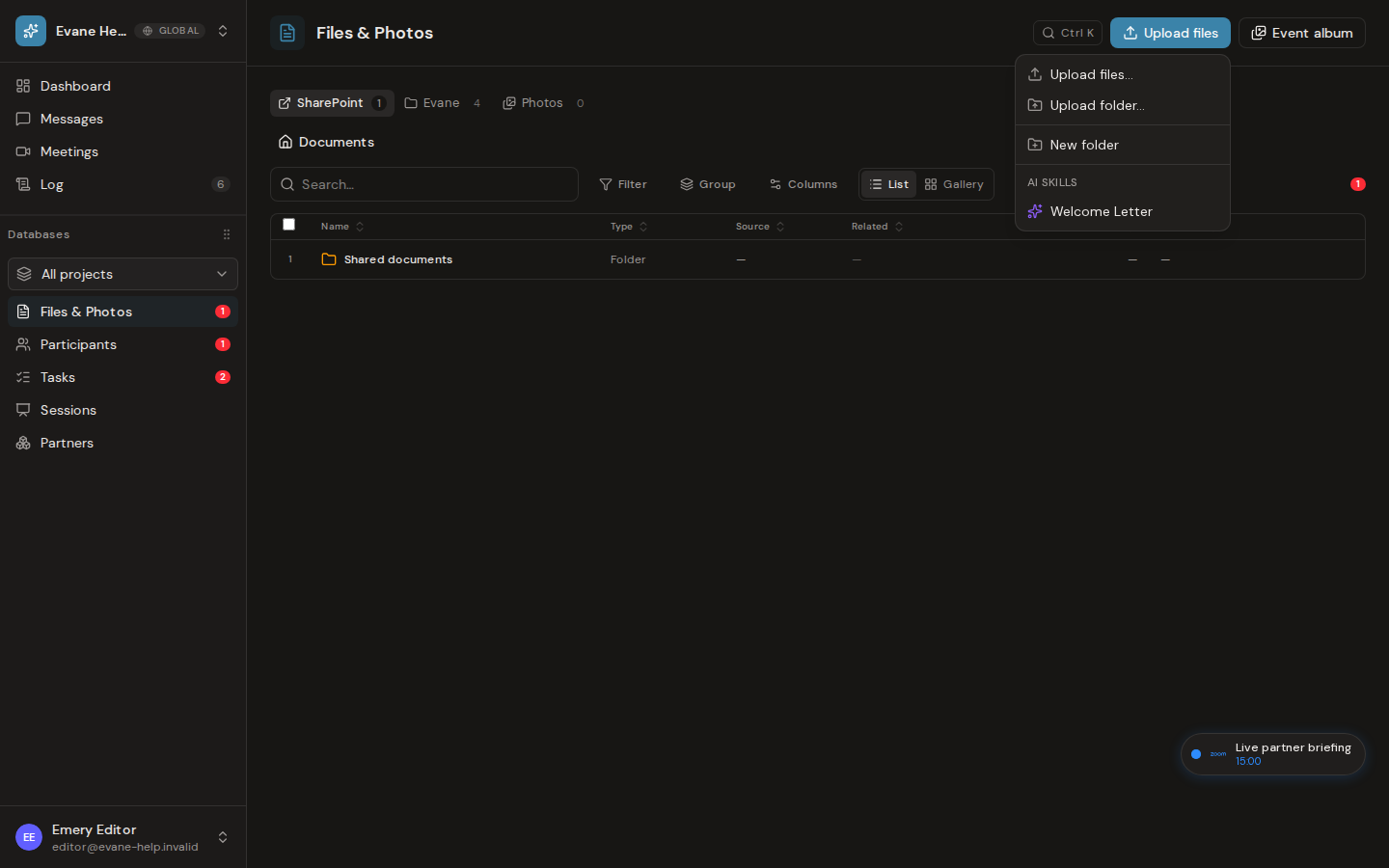
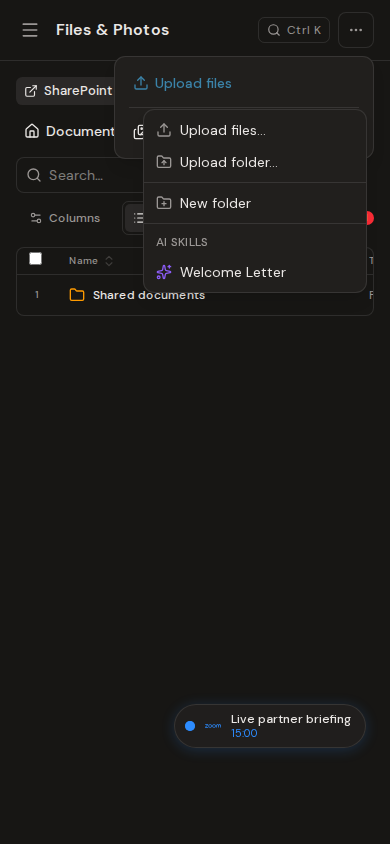
- Open Upload files, then choose Upload files… for one or more files or Upload folder… to preserve a local folder tree.
- Keep the page open while each progress row completes. You can cancel an upload that is still running.
- Open the finished row or reload the page to confirm that it was saved.
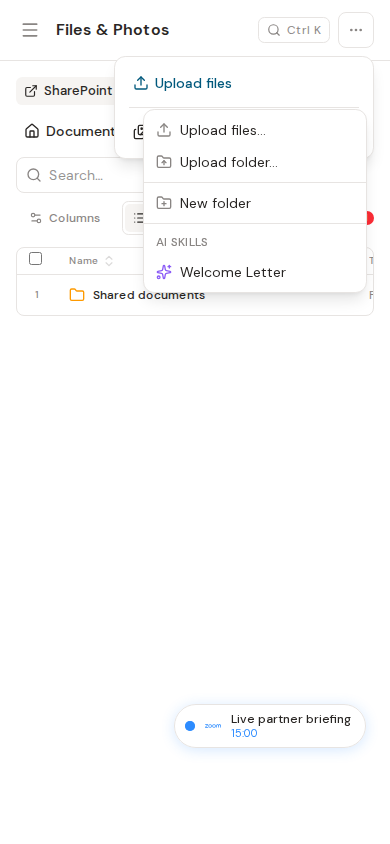
Each upload is tracked separately, including repeated uploads of a file with the same name. If one file fails, successful files remain in the library and the failed item reports its own error.
Organize uploaded files
Choose New folder from the Upload files menu, then upload or move Evane-owned files into it. Empty folders are a view-level convenience; the durable folder path comes from files stored inside the folder.
SharePoint-only folders remain read-only. If a destination contains SharePoint files, Evane may prevent a move that would make the folder appear to have been moved while its source-owned contents stayed behind.
Uploading, creating folders, and changing file locations require workspace write access and configured Blob storage.