


A Lark project connector gives Evane read-only access to one shared Drive folder. Evane can synchronize files and folders into the current workspace, but it never changes content in Lark.
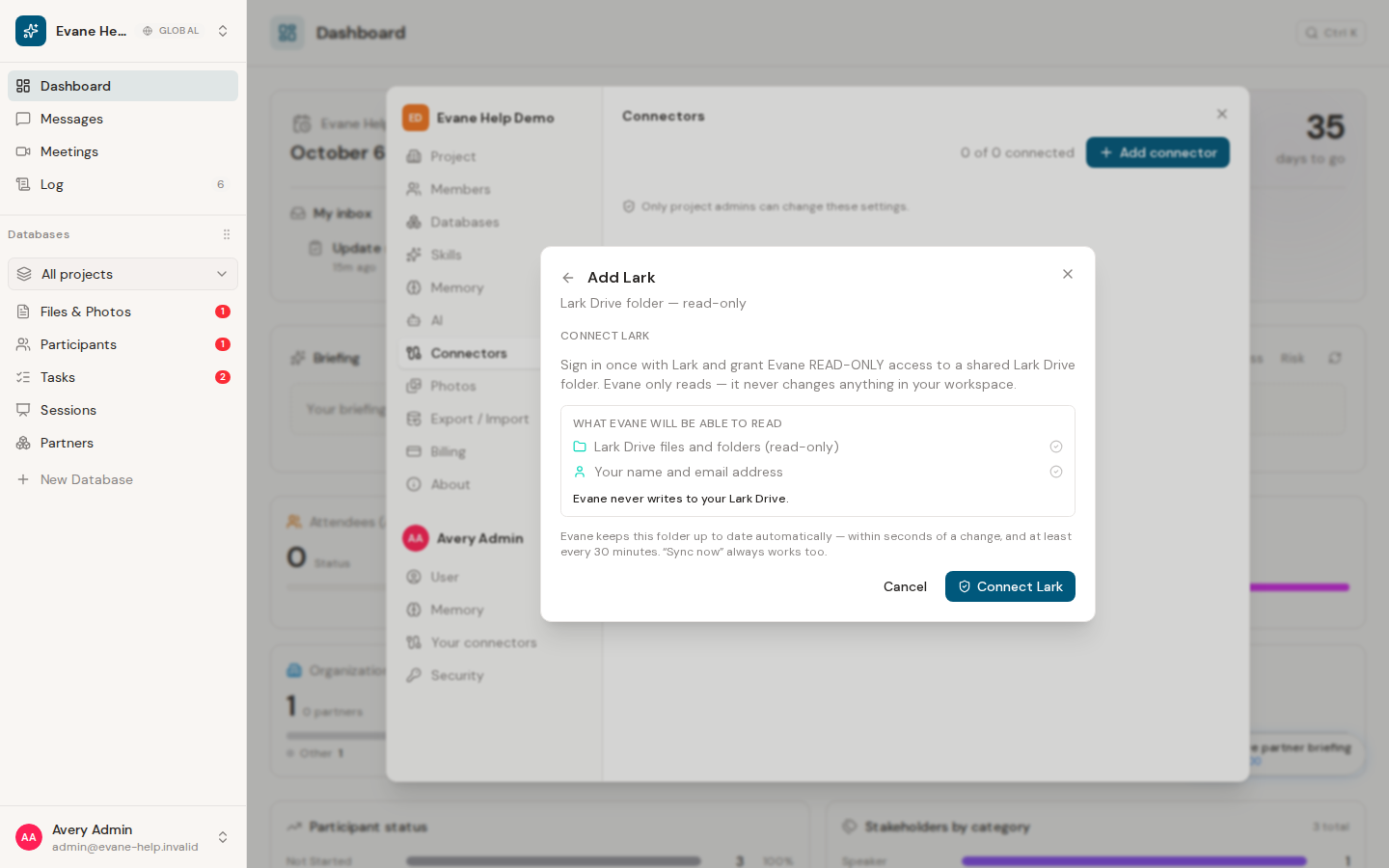
Authorize Lark
An Owner or Admin can open Settings > Connectors, select Add connector, and choose Lark. Select Connect Lark, approve the read-only request in the Lark browser tab, then return to Evane and refresh the connection step.
The consent includes the shared Drive folder and basic account identity needed to maintain the connection. If Lark rejects the request or the redirect address does not match the Lark app configuration, Evane shows the returned error and redirect address instead of creating a partial connection.
Choose the folder to synchronize
After authorization, select one folder from My space or Shared with me. If the folder is not listed, paste a Lark Drive folder link and resolve it before saving. The authorized account must be able to read the selected folder.
Evane synchronizes that folder and its descendants. Reconnecting repairs the existing connector; choosing another folder changes the scope of later synchronizations without moving or deleting anything in Lark.
If Lark is unavailable
The Lark option appears only when the deployment enables and configures it. If the option is missing, the app credentials are unavailable, or authorization has expired, ask the deployment administrator to check the connector configuration before trying again.