



A Google Workspace connection synchronizes one selected folder into the current workspace. An Owner or Admin must complete the authorization and folder selection.
Authorize and choose the folder
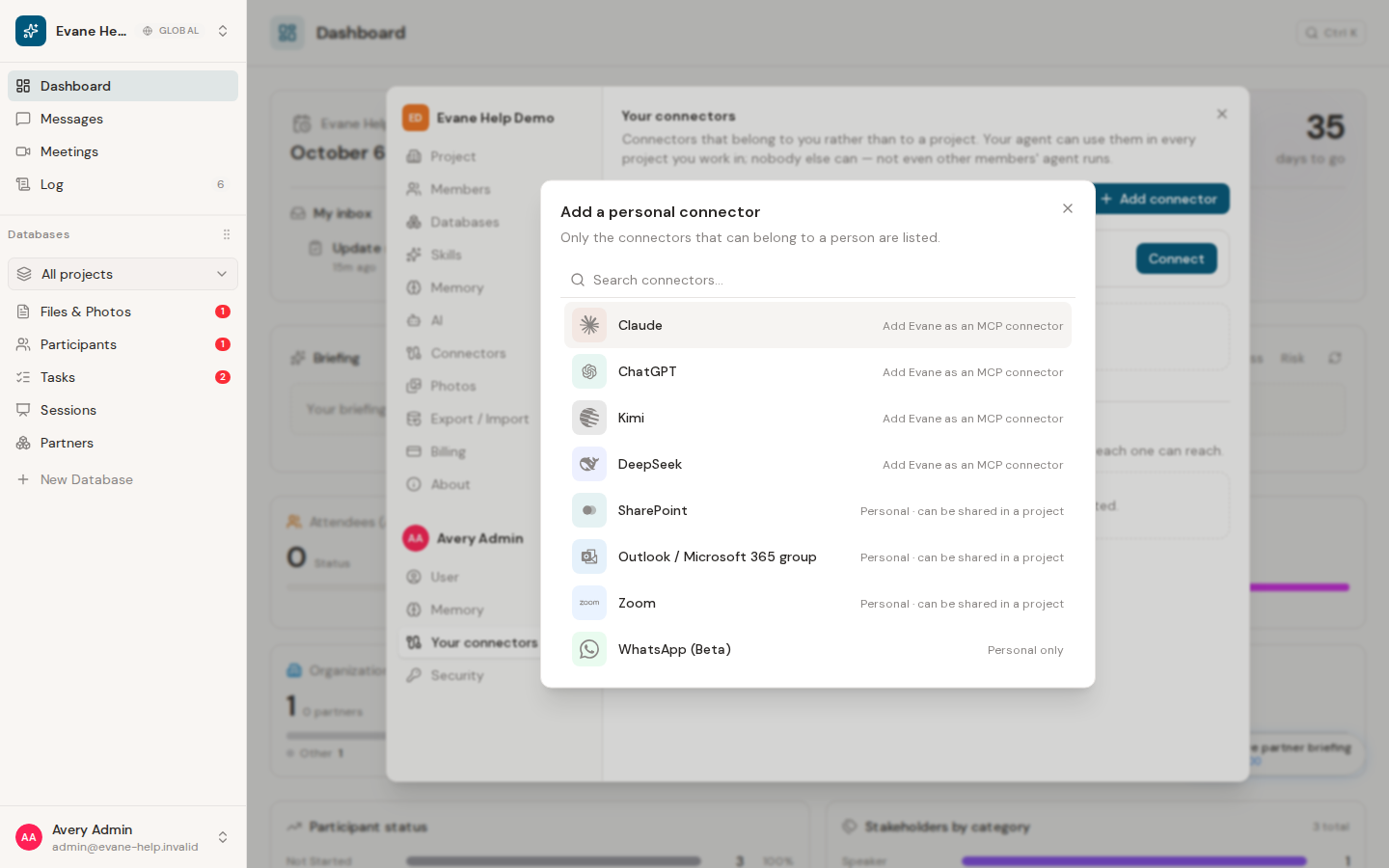
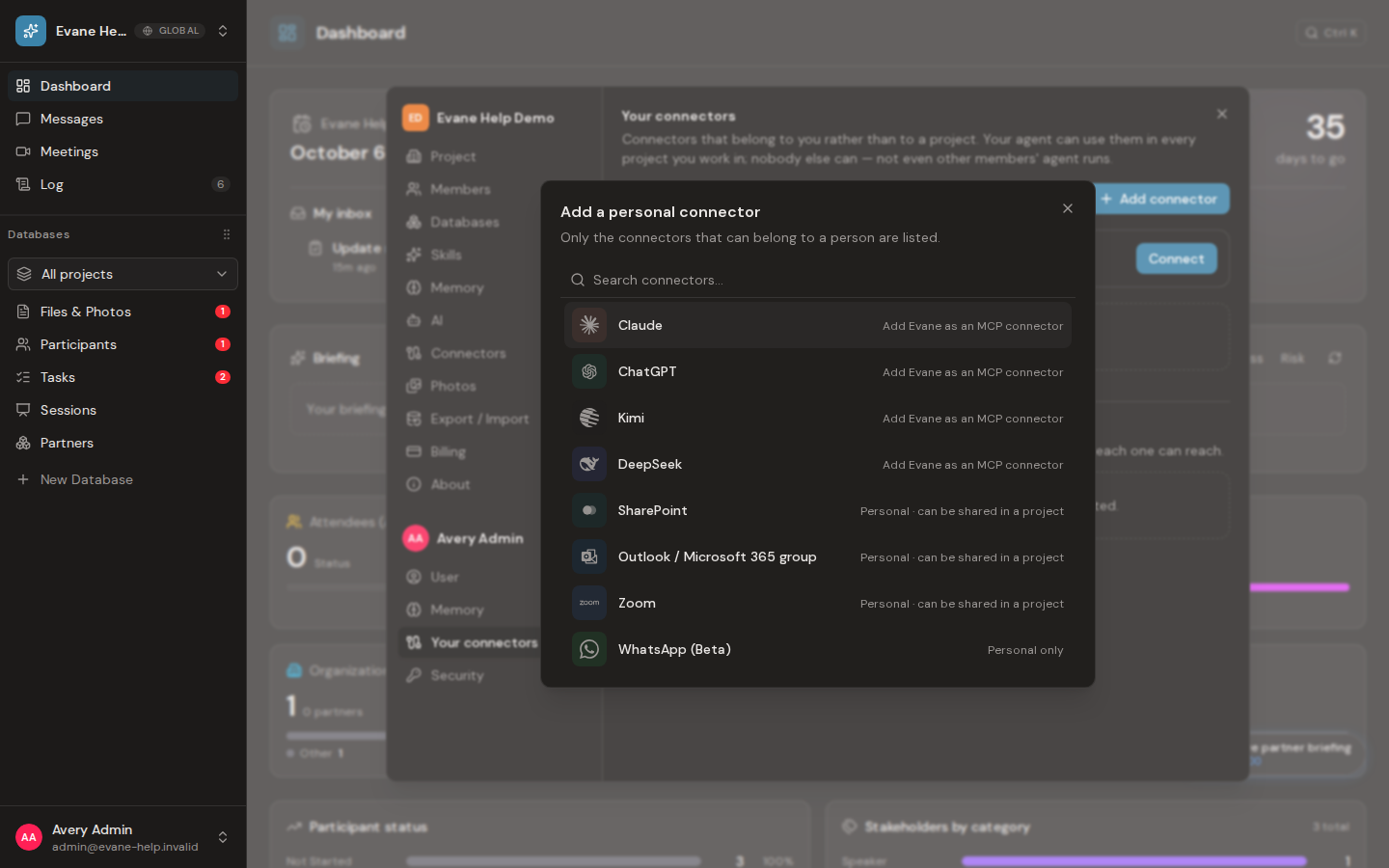
- Open Settings > Connectors and add Google Workspace.
- Complete Google consent in the browser and return to Evane.
- Choose one folder from My Drive, Shared with me, or Shared drives. If it is not listed, paste a Google Drive folder URL or folder ID.
- Confirm the selection. Evane saves the folder binding and queues synchronization.
The manual value must identify a folder that the authorized Google account can read. A file URL, unknown ID, revoked grant, or temporary Google error produces a specific error instead of silently selecting another folder.
Change or resynchronize the source
Use the connected tile's folder action to replace the selected folder. A new selection controls later synchronization; it does not move or delete content in Google Drive. Monitor the sync state before expecting every item in Files, especially after an initial crawl or a large change set.
Pause stops an active sync at a safe checkpoint. Resume retires the paused attempt and queues a new run from its saved progress rather than starting an unrelated duplicate crawl.