


Custom Participant tabs are saved table views. They can isolate records by profile fields or Session relationships, and you decide whether each new view is Public or Private.
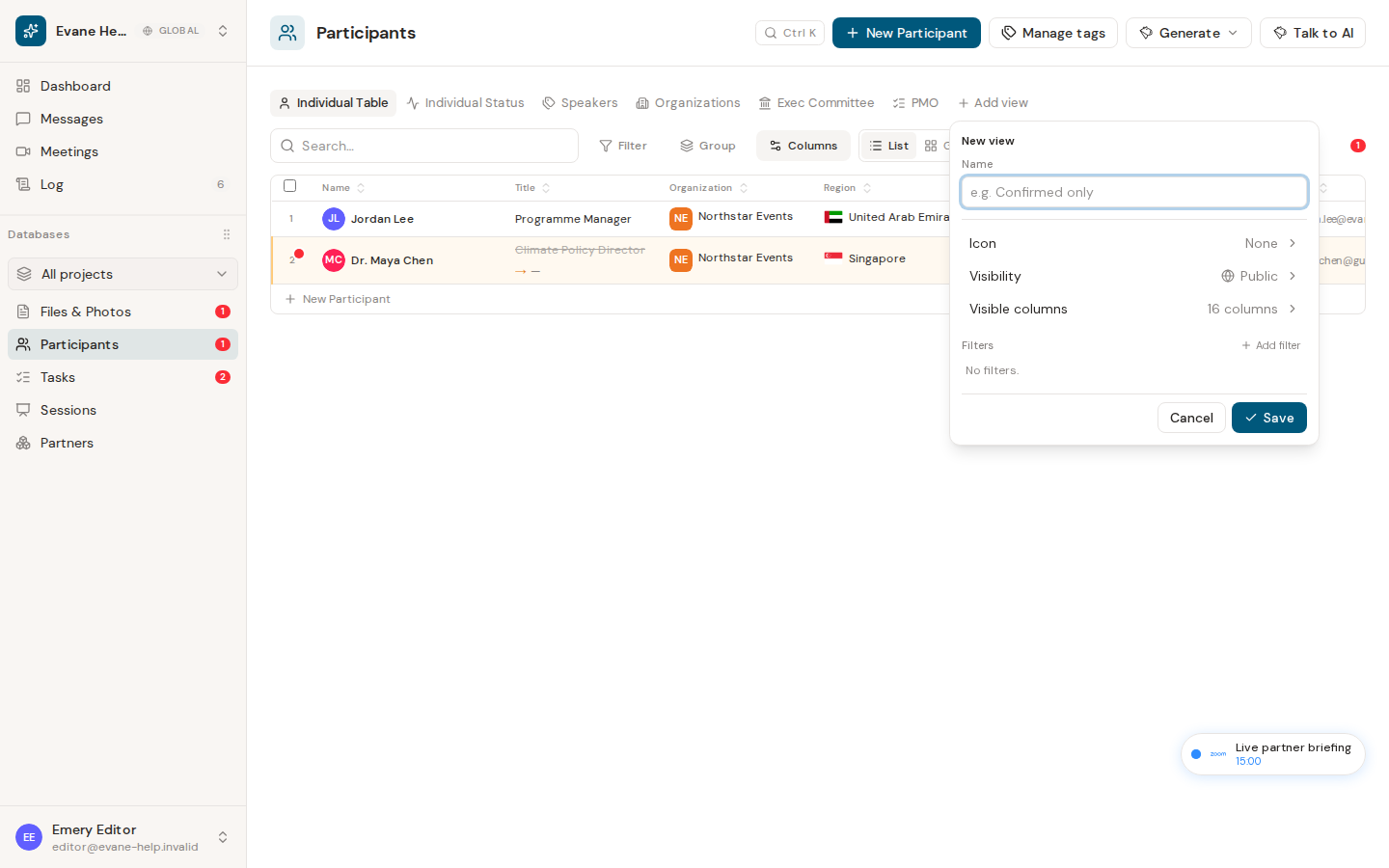
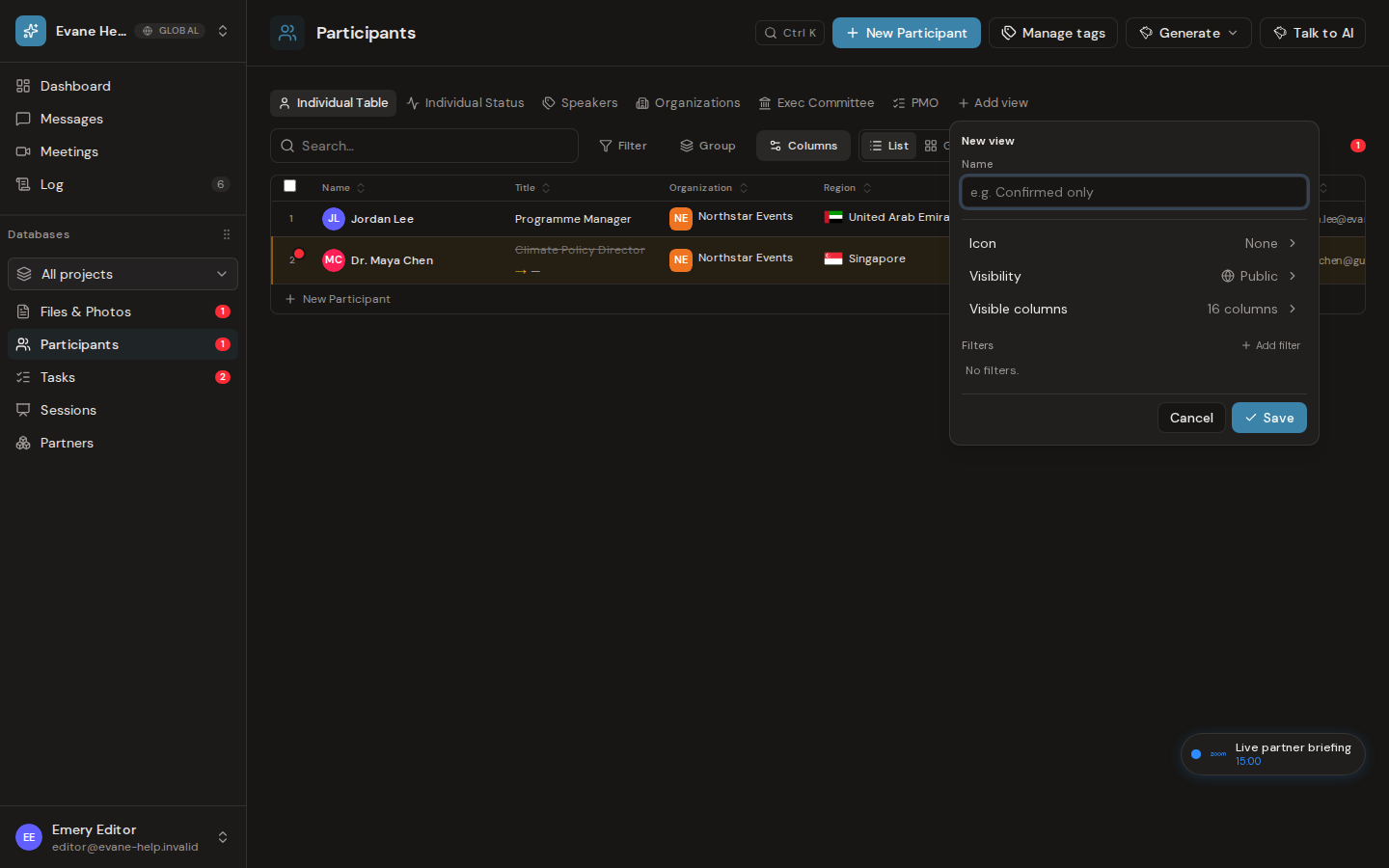
Add a view
- Open Participants and select the + beside the fixed tabs.
- Enter a view name and optionally choose an icon.
- Choose Public to share the tab with the workspace, or Private to keep it visible only to you and workspace Admins.
- Configure visible columns, filters, and sorting.
- Save the view and select its tab.
Participant view fields include normal Participant columns plus generated Sessions and Session Roles values. For example, a Session Roles filter can create a focused Moderator or Panelist view.
Edit, reorder, or delete a view
Hover or focus a custom tab and open its menu. You can edit the configuration, set or clear its icon, move it left or right, or delete it. Fixed tabs do not expose this menu.
Creating, updating, and deleting saved views requires workspace write access. Viewers can read visible Public views, but the Evane service rejects view mutations.
How custom tabs are shared
Public tabs are available to workspace members. Private tabs carry a lock icon and are visible only to their creator and workspace Owners or Admins. Each tab keeps its creator, and only the creator or a workspace Owner/Admin can change its visibility.