



A Participant profile keeps visual identity, classification, and supporting documents together. Photos, Tags, and Files are stored through different controls and follow their own validation rules.
Add a photo
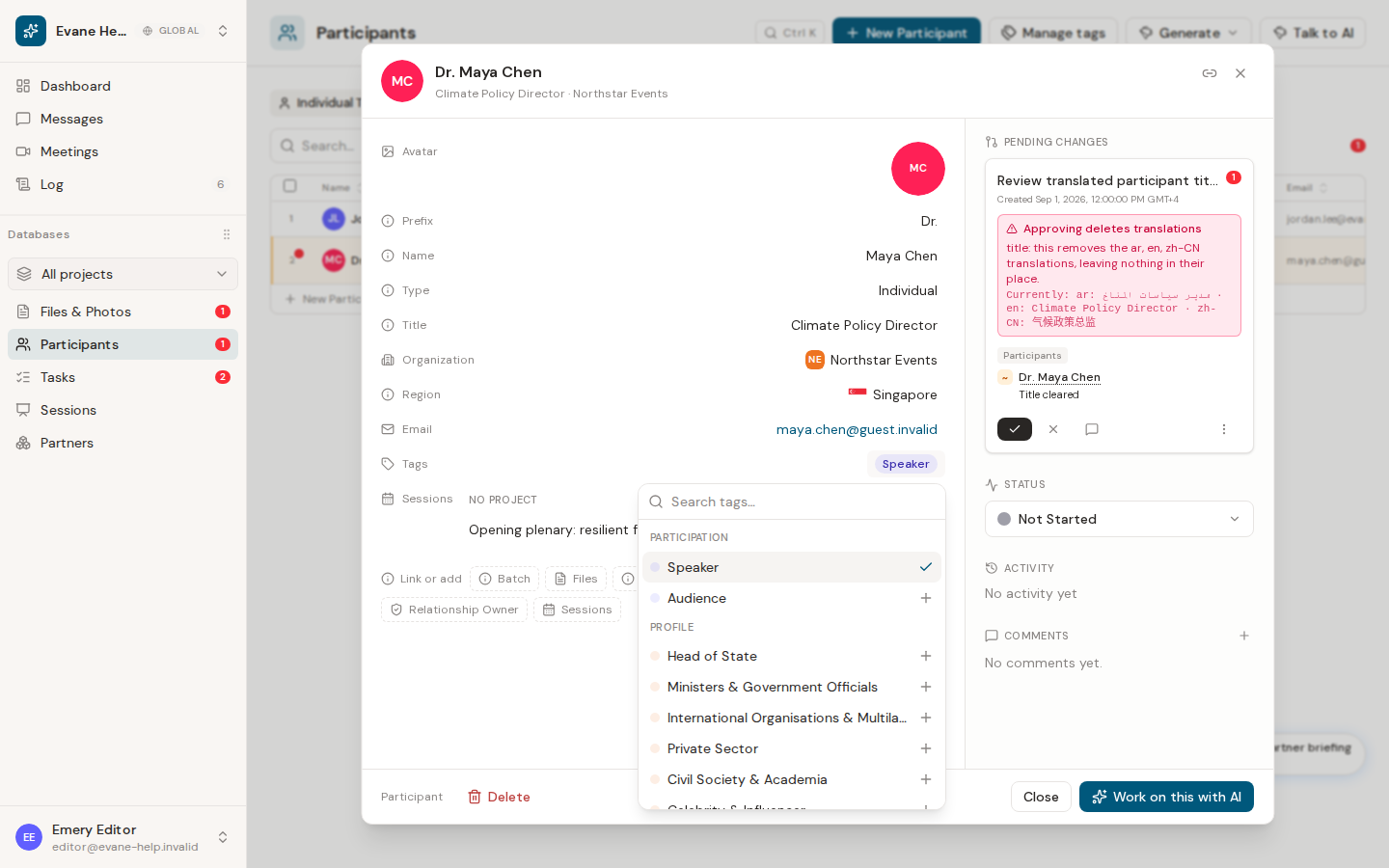
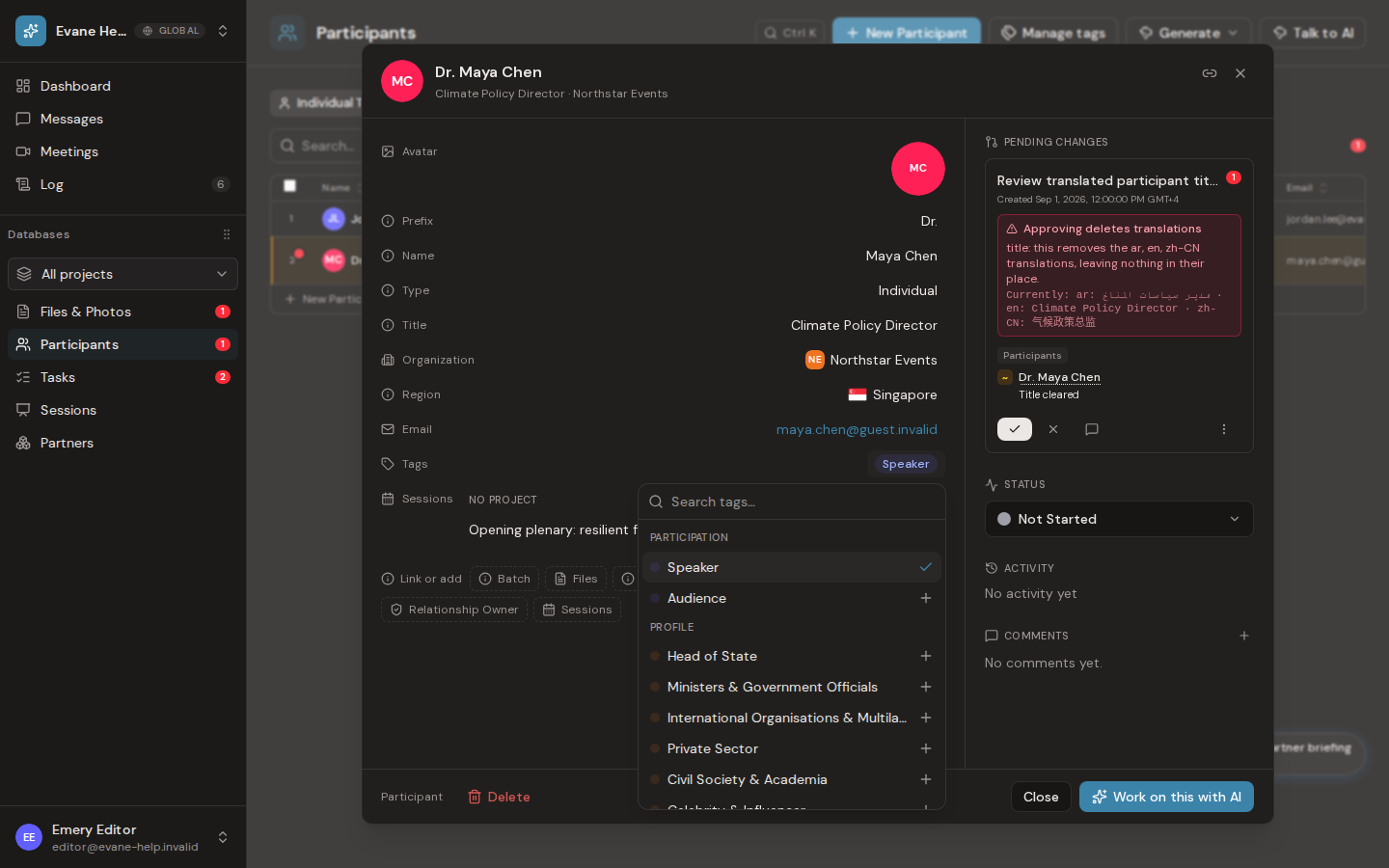
Open the Participant detail dialog and select the avatar. Choose an image file, then store it as a square Headshot or a full Full photo. The square option opens the crop flow; the full option keeps the image's aspect ratio while reducing oversized images. Removing both images returns the avatar to initials.
Assign tags
Create or edit a Participant and select one or more stakeholder Tags. The saved Participant stores tag IDs, and tables and detail dialogs resolve those IDs to the controlled tag labels.
Add and open files
Use the Files action in a Participant row or the Link or add area in the detail dialog to:
- upload a local file and link it to the Participant;
- link an existing workspace file; or
- run an available document Skill such as Invitation Letter.
Evane-owned uploads and generated files open through the authenticated Evane service download route. Connected-provider files open their SharePoint, Google Drive, or Lark source URL when one is available.
Remove a file
Deleting an Evane-owned file moves the file to Trash and hides it from normal views while retaining its bytes and links for the recovery period. Removing a linked external file in the detail dialog removes only the entity link when a link ID is available; it does not delete the provider source. These actions require write access, and deleting the file itself is limited to its uploader or an Owner/Admin.
If a file does not open
Workspace members can read files stored or synchronized inside the active workspace. A missing file ID, missing provider URL, or storage error can still prevent opening. For a source-owned link, its provider may separately reject the current user's attempt to open the original page.
Related workflow: Manage Participant tags
Assign existing tags
Use the Tags field while creating or editing a Participant. The picker is restricted to stakeholder categories and stores the selected tag IDs on the Participant. Saved values persist through the Participant API and can be displayed or filtered in Participant tables.
Some built-in tags have workflow meaning. For example, Speaker, Ministers & Government Officials, and International Organisations & Multilaterals control Invitation Letter template selection.
Manage the registry
Members with write access can select Manage tags to add, rename, or delete a Category/Subcategory entry. Duplicate IDs are blocked, and deleting a registry entry requires confirmation. Session-scoped categories are hidden from this Participant dialog.
How tag changes are saved
Manage tags changes to the available tag list may reset after a page reload. Tags already assigned to a Participant are saved, but a custom tag may stop showing its label if its definition is no longer available.