



Saved views let you keep a useful table arrangement without changing the underlying records. They are scoped to one entity type and can remember filters, sorting, visible columns, order, and an icon.
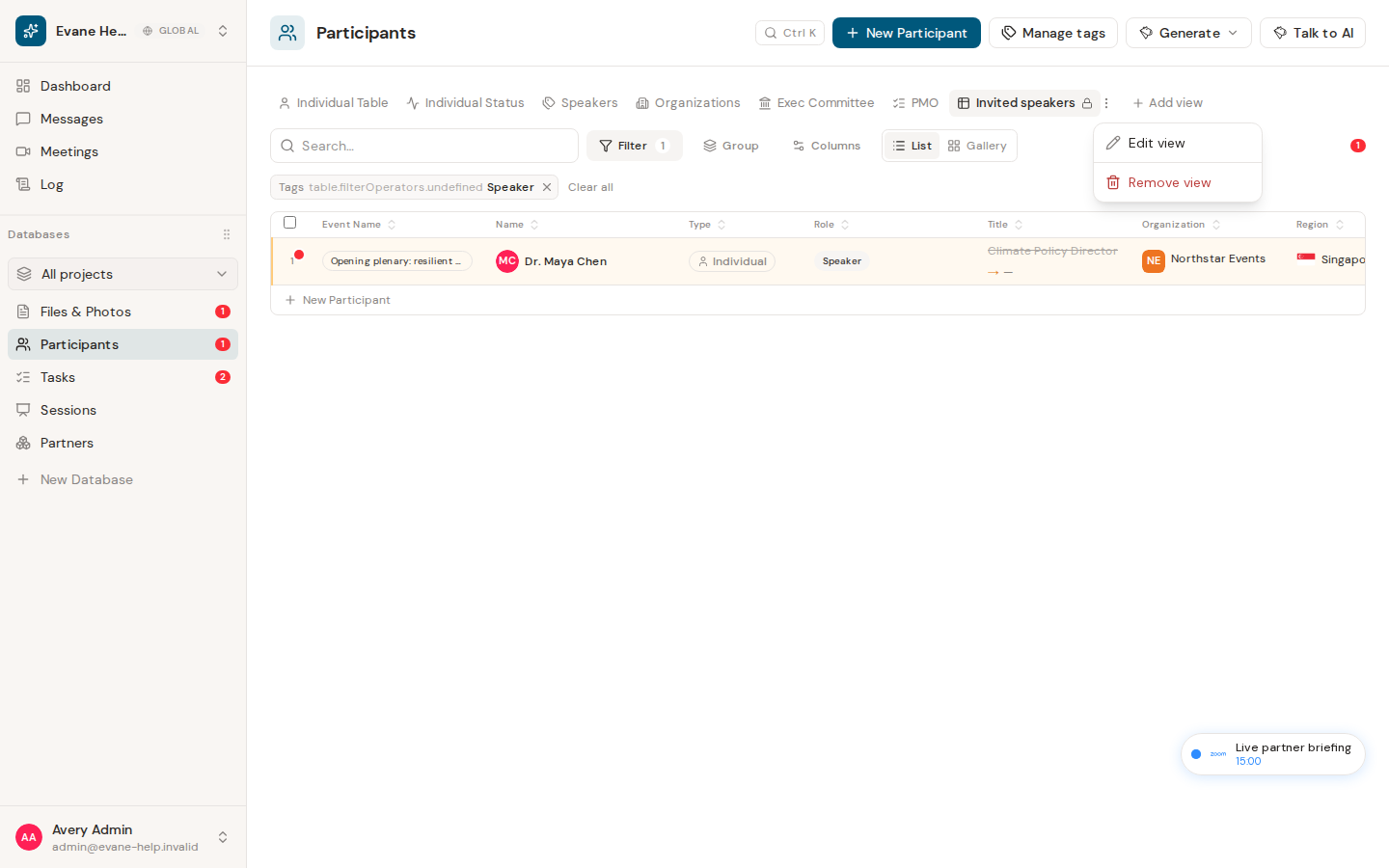
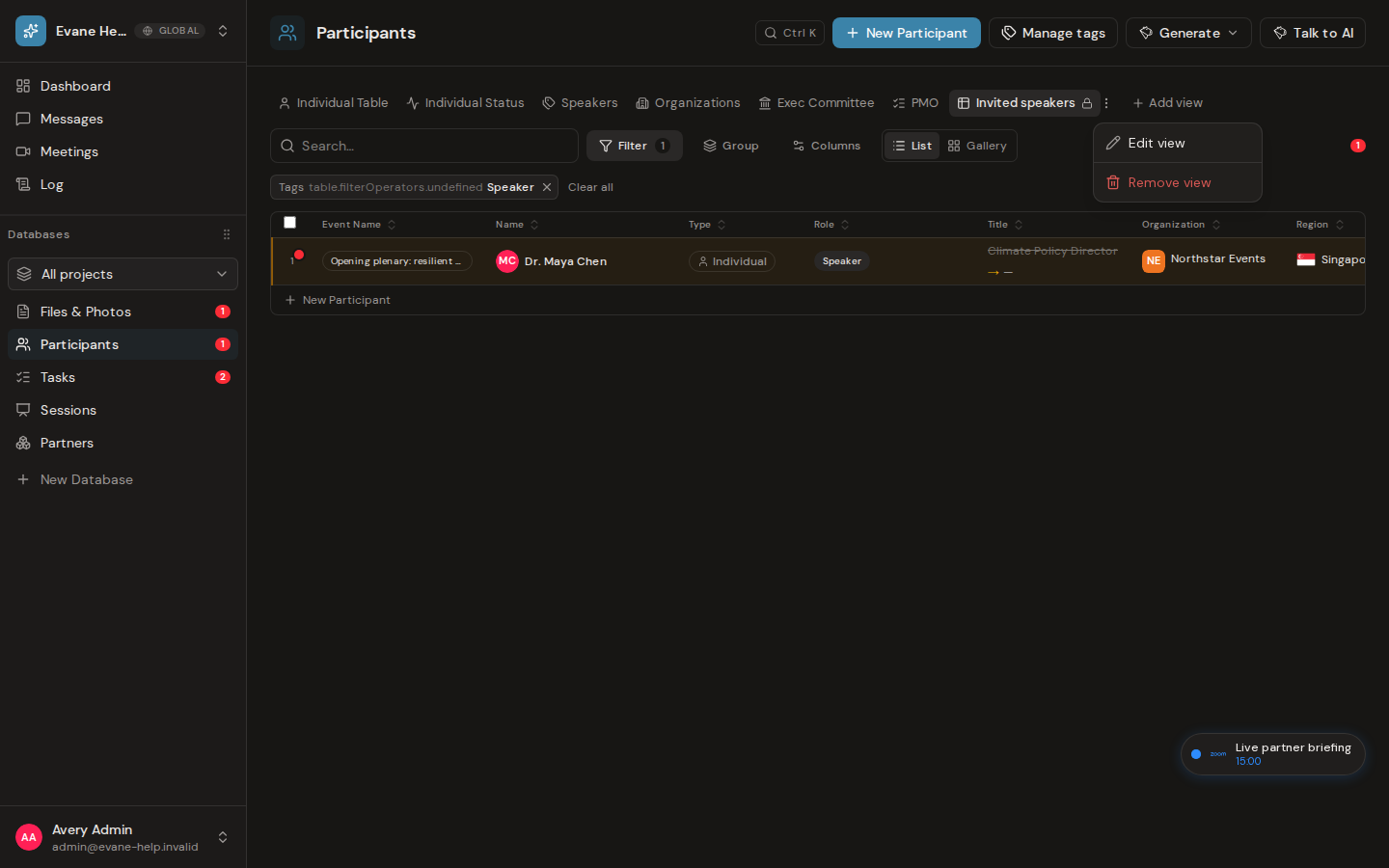
What a saved view stores
A saved view is a reusable table preset for one entity type. It stores a name, filters, hidden columns, sort settings, an optional icon, and whether the view is Public or Private. The built-in All view is fixed and is not stored, edited, moved, or deleted.
Add a view
- Open a table that displays view tabs.
- Select Add view.
- Enter a name and optionally choose an icon.
- Choose Public for a workspace view or Private for a view visible only to you and workspace Admins.
- Configure visible columns, filters, and sorting.
- Save, then select the new tab to apply it.
Edit, move, or remove a view
- Open the three-dot menu next to a non-built-in view.
- Choose Edit view to change its name, icon, filters, columns, or sort.
- Use Move left or Move right to reorder custom tabs. All remains first.
- Choose Remove view to delete it.
Saved views are saved by the Evane service and reload with the entity table. The active view rebuilds the table state from its stored configuration.
Permissions and visibility
Every new view records its creator. Workspace members can see Public views; a Private view is visible to its creator and workspace Owners or Admins. A lock icon marks Private tabs. Creating or changing a view requires write access, and only its creator or a workspace Owner or Admin can change its visibility.
If a view does not save
Evane removes a failed optimistic create and shows an error. Update or delete failures also show an error; reload the page to recover the saved state before trying again.