



Use search for matching text, filters for field conditions, sort for order, and grouping for visual buckets. These controls can be combined without changing the stored records.
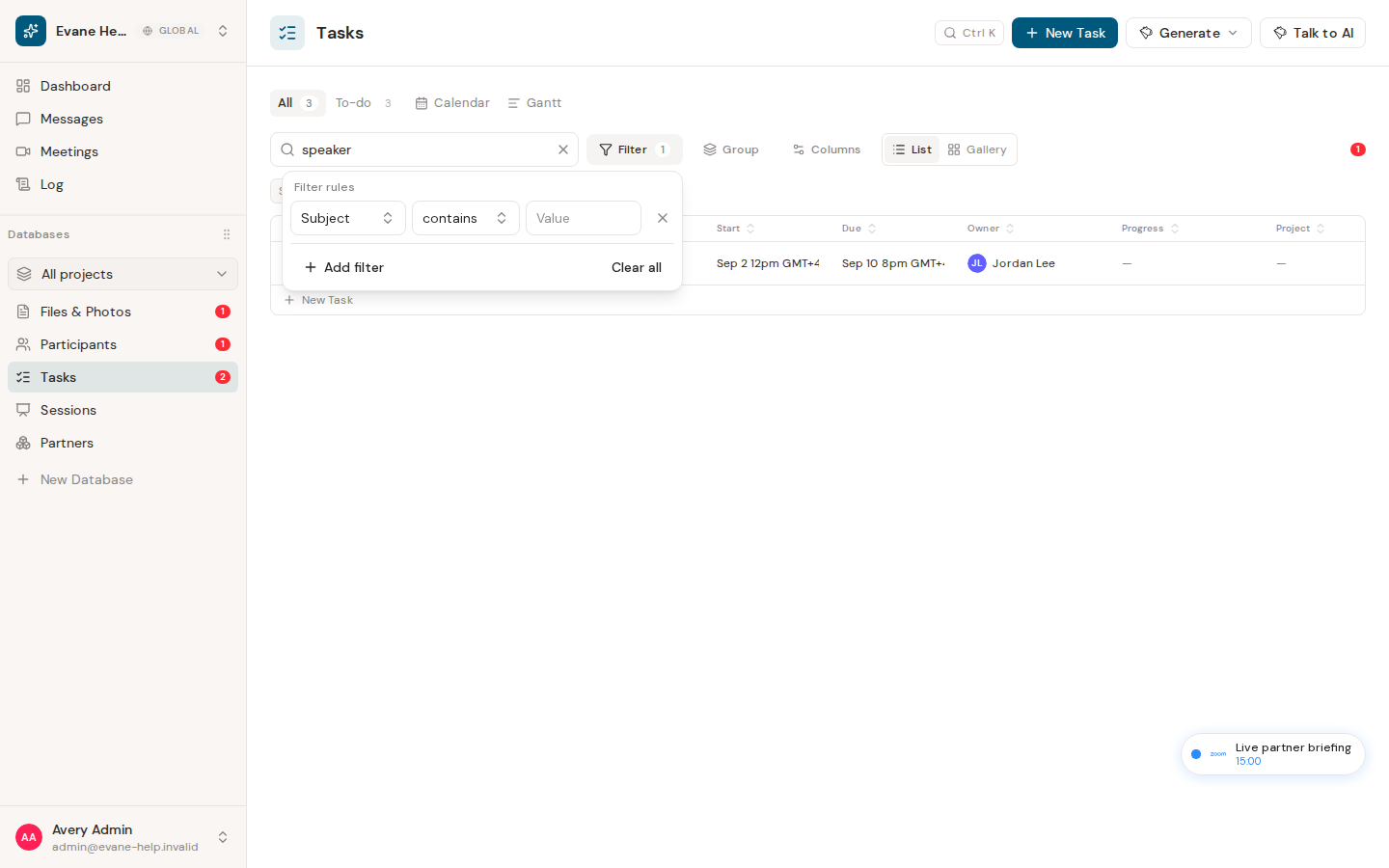
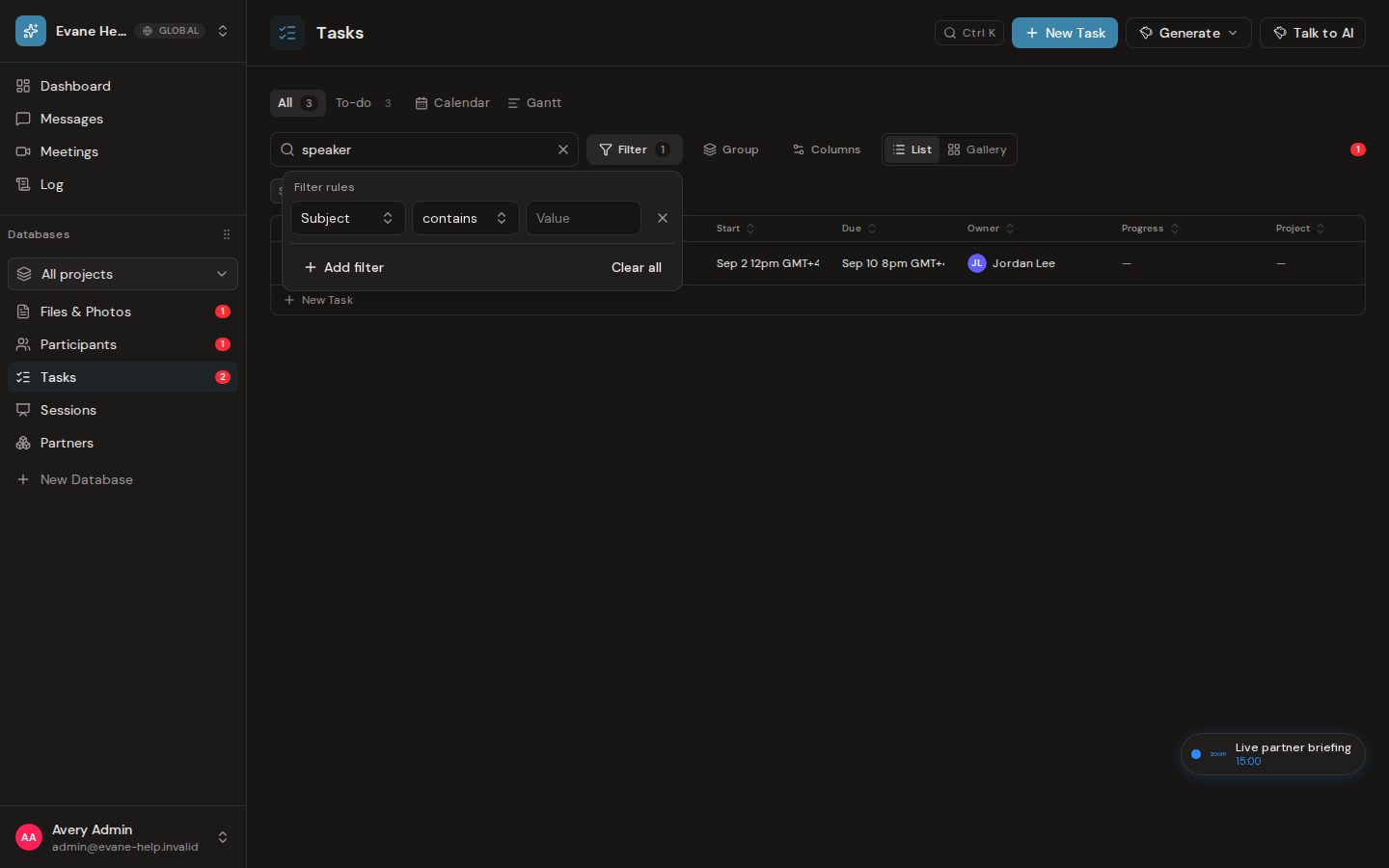
Find the records you need
Evane list pages use a shared table system. A page can enable search, field filters, sorting, grouping, column visibility, column order, resizing, and pagination.
- Enter text in Search to match visible column values.
- Open Filter, choose a field, condition, and value, then add more rules when needed.
- Select a sortable column header to cycle through ascending, descending, and unsorted order.
- Open Group and choose a supported column. Expand or collapse groups to scan the list.
- Open Columns to show, hide, or reorder available columns.
- Use the footer to change rows per page or move between pages.
Search, filtering, and sorting are applied before pagination. Filtering supports field-appropriate operators, including empty values, date comparisons, tag membership, and numeric comparisons where those field types are present.
The table displays only matching rows in the requested order. Clearing search and filters restores the unfiltered set. If no records match, the table shows a filter-empty state with a clear-filters action; a truly empty dataset shows the page's empty state.
Important behavior
Column visibility affects text search because search checks the currently visible columns. A saved view can preserve filters, hidden columns, sorting, and an icon for later use.
Related workflow: Find records with the command palette
Open and search
- Press
Cmd+Kon macOS orCtrl+Kon Windows and Linux. The shortcut is ignored while you are typing in an input, textarea, or editable field. - Enter a record name or keyword.
- Review server-ranked results grouped by object type.
- Select a result to navigate to the relevant workspace area and open its detail dialog.
Search runs within the active workspace. Results are limited to objects returned for that project. For files inside Evane, project membership is the read boundary; opening an original external-source link can still require separate provider access.
Other available commands
Depending on context and permission, the palette can also:
- navigate to workspace views;
- create a supported record;
- ask Evane AI;
- change a selected record's status or owner;
- copy a deep link to the open record;
- switch the application theme.
Available commands are filtered as you type. Commands that create or modify data are hidden or blocked when the current role is read-only.
Selecting a record closes the palette and opens the correct detail. A copied entity link contains the entity type and ID, allowing Evane to reopen the same record when the recipient has permission.
If search has no results
- Try a shorter name or a distinctive keyword.
- Confirm that the intended workspace is active.
- The record may be unavailable to your workspace role, deleted, outside the active workspace, or not indexed as a supported object type.
- If the request fails, the palette can still show local navigation actions, but it cannot invent record results.