



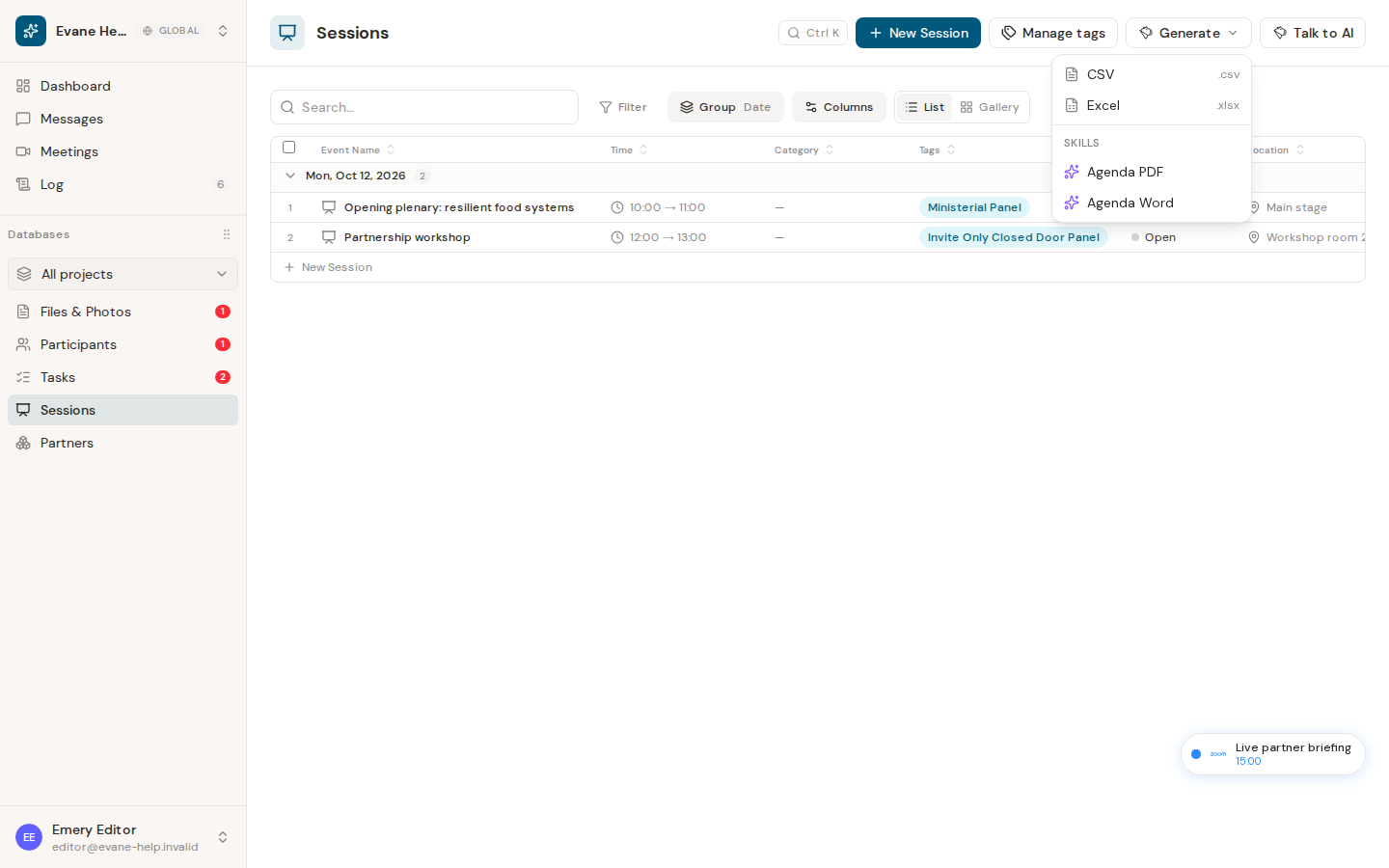
The Sessions page can turn the workspace program into a branded Agenda without copying rows by hand. Generate lists every Skill your workspace has hooked to Sessions — commonly one that builds a Word agenda, and sometimes a second that renders the same agenda to PDF.
Generate an Agenda
- Review Session Event Names, Start and End times, Tags, Description, Location, and linked Participants.
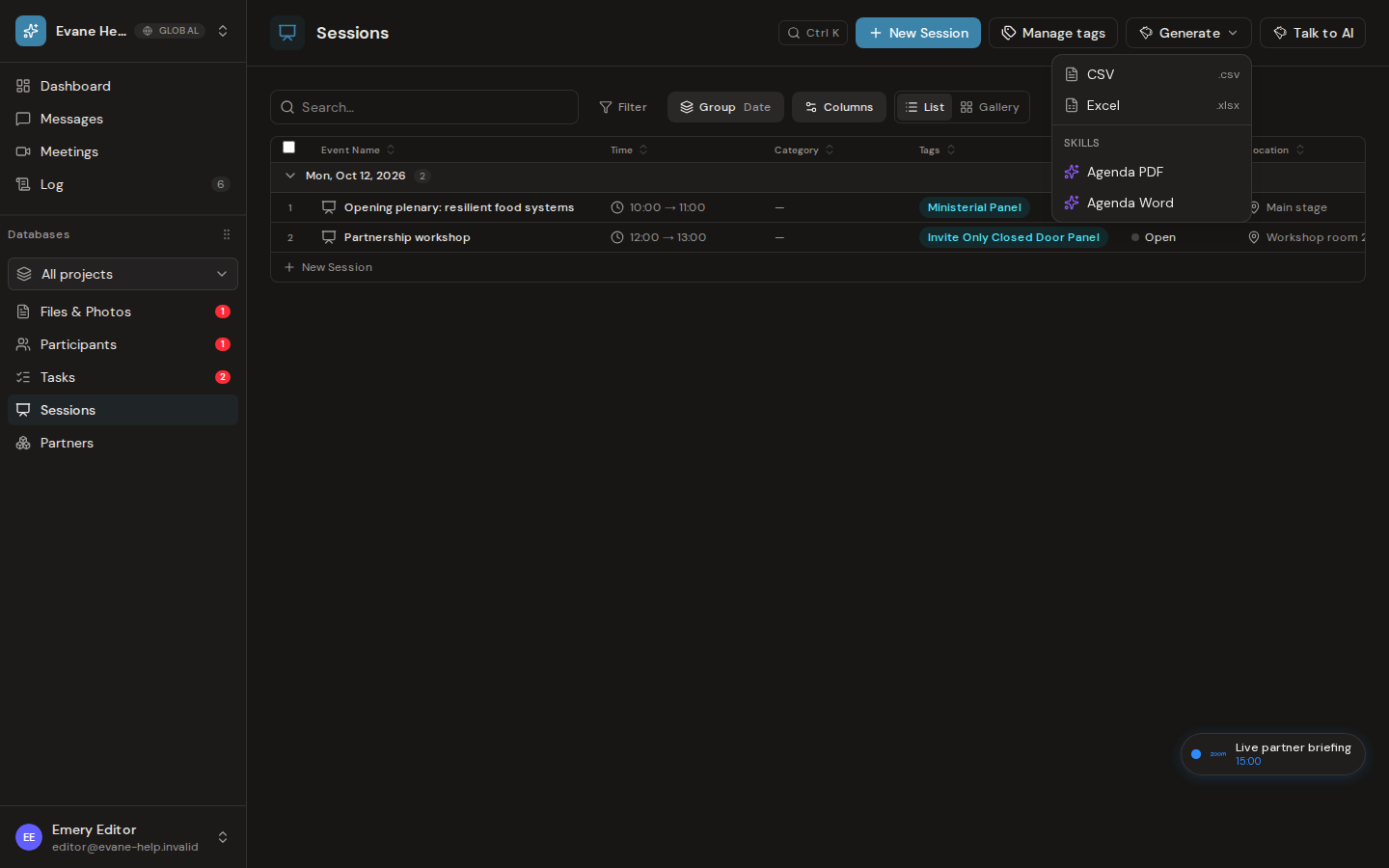
- Open Generate on the Sessions page.
- Choose the agenda Skill you want.
- Evane opens a chat, runs the Skill against your live Sessions, and returns a link to the file it produced.
The Skill reads current Session data with code, fills in its own attached template, and — for a PDF result — converts the filled document rather than starting from a separate PDF template. The finished file is stored in Files, in the folder the Skill's own instructions choose.
Generation requires an enabled Skill with its template correctly attached, and workspace write access. If it fails, check the Skill's attachment before changing Session data; the source Sessions are not modified by export.