



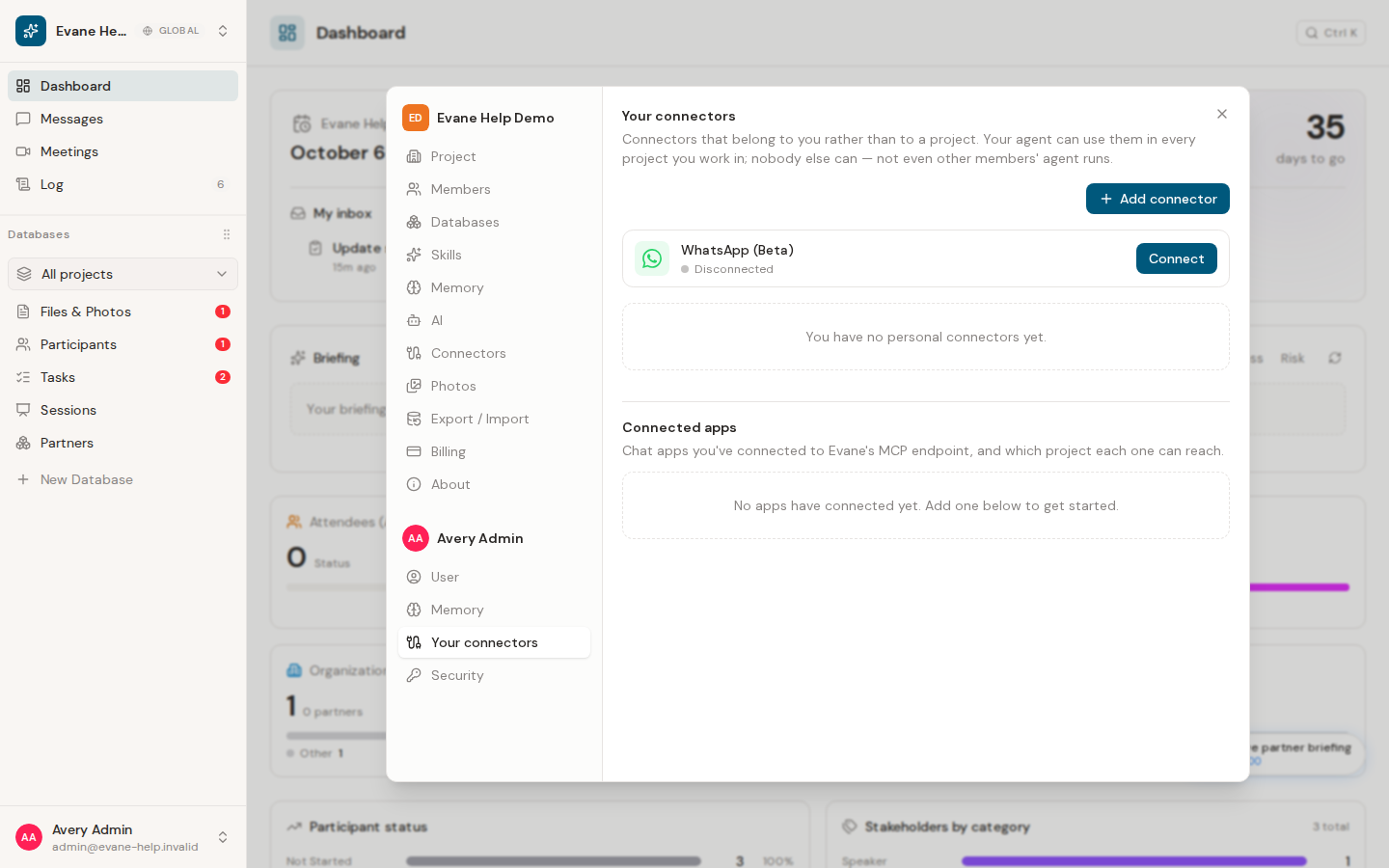
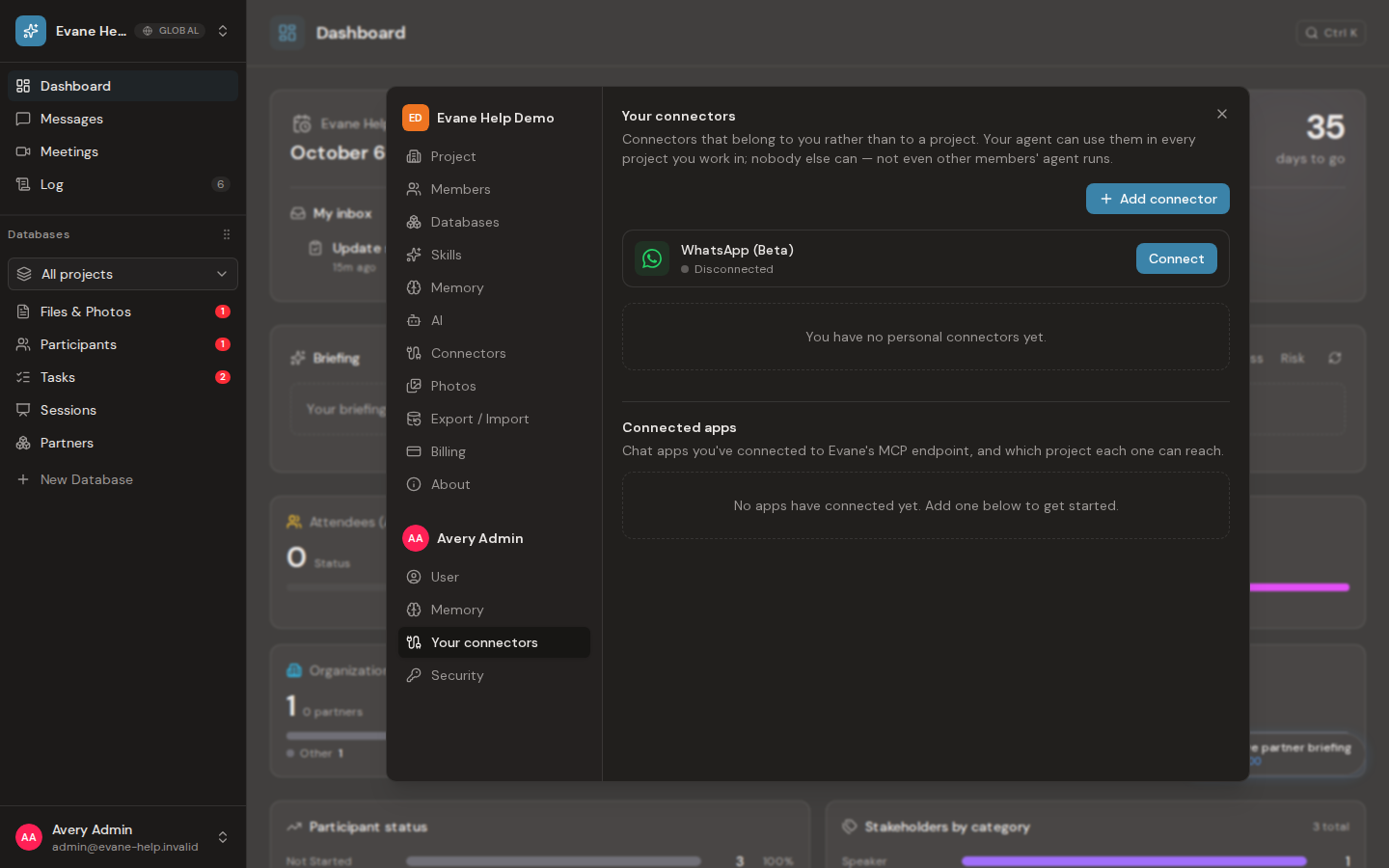
Personal connectors belong to your account, not to every member of the current workspace. Open the user section of Settings > Connectors to add a supported personal service, review existing access, or remove a connection you no longer use.
Removing a personal connector revokes your own assistant's access to that connector. A copy previously shared into a workspace is an independent project connection and is not deleted by this action.
Link your WhatsApp identity
WhatsApp is a permanent card on the personal Connectors page and is also searchable from Add connector; both entry points open the same flow. If your account has no verified phone, first bind one with the one-time code flow shared with Settings > User > Phone. Then scan or open the WhatsApp link and send its pre-filled message. Phone verification alone records ownership, but the connector is complete only after that message reaches the bot. This binding is stored as your WhatsApp identity, not as an ordinary personal Connection row.
Share an eligible connector with the current project
A personal connector is live access for your account and is not scheduled to synchronize workspace records. When its provider supports project scope and your workspace role allows writes, open the connector menu and choose Share in project. Confirm the current project to create a separate project connection that other members can use and, for pull-based providers, synchronize. Personal-only connectors do not offer this action, and sharing the same connector twice returns an already-shared message.
Connect an MCP client
The connector chooser can show setup instructions for supported MCP clients such as Claude, ChatGPT, Kimi, or DeepSeek. Completing the OAuth flow grants that client access to one selected workspace under your identity. The grant does not become a general workspace connector and does not give the client another member's permissions.
Review and revoke grants
The connected-apps list shows your active MCP grants with their workspace and client. Select Revoke to invalidate both the access and refresh credentials for that grant. You can revoke only your own grants; an unknown or another user's grant is reported as unavailable rather than exposing its existence.
Revoking MCP access does not delete chats, workspace records, or external source data. Reconnect from the client if you later need access again.