

Choose the sign-in method configured for your deployment. Every successful method creates the same Evane browser session, then returns you to onboarding, a requested Help page, or the workspace picker.
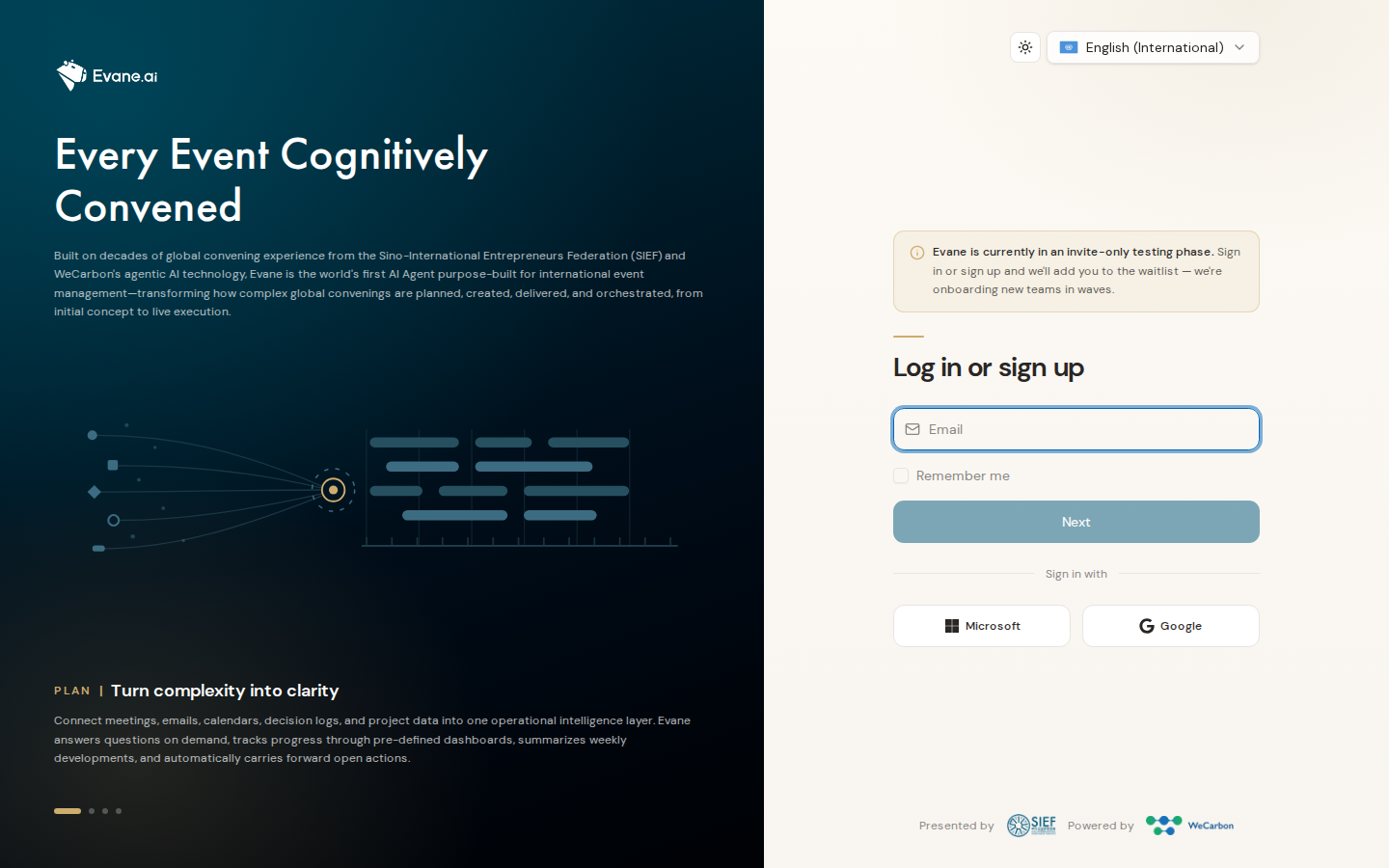
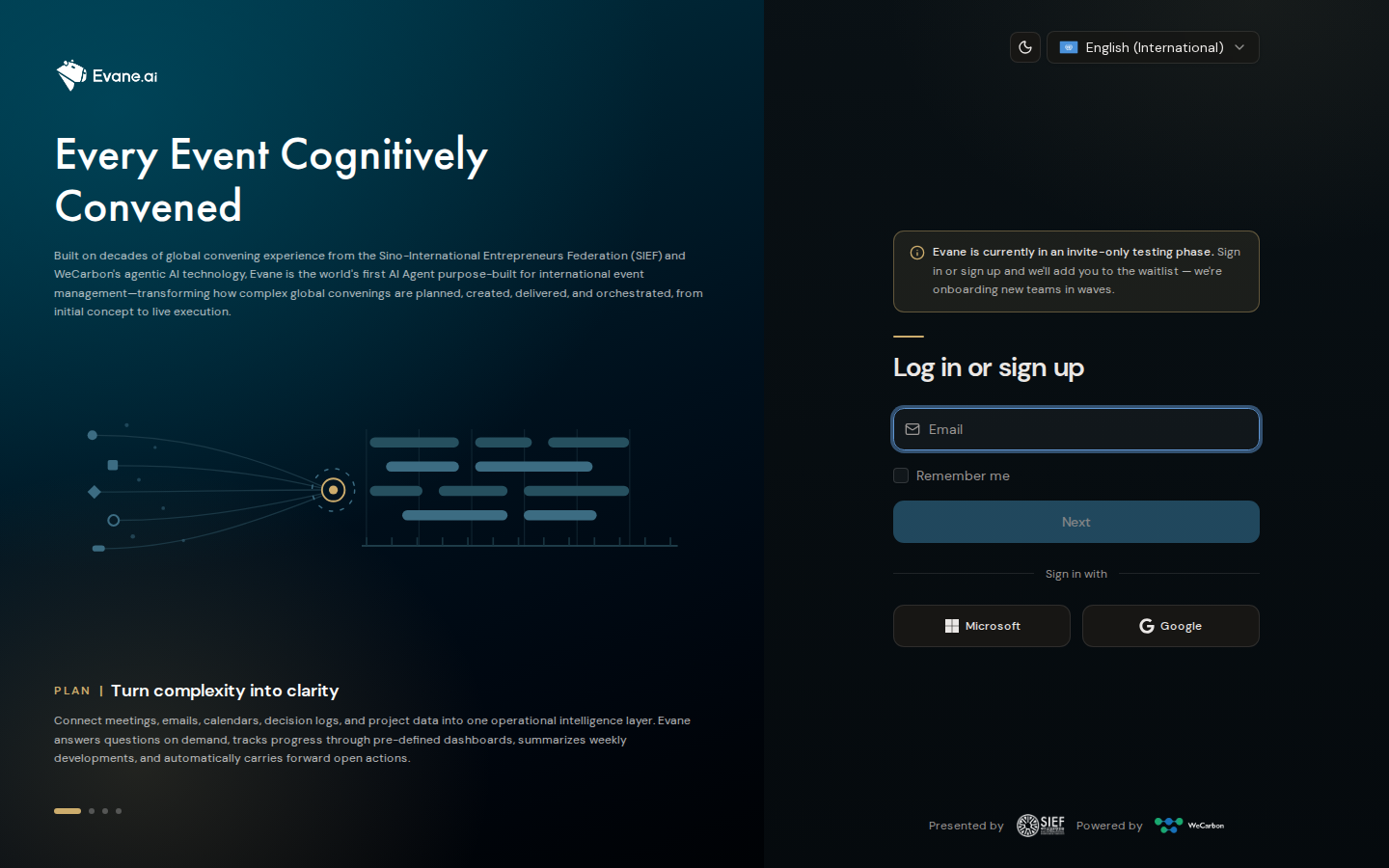
Sign in with your email address
- Open the Evane sign-in page.
- Enter your email address and select Next.
- Evane checks whether that account has a registered passkey.
- If no passkey is registered, Evane emails a six-digit verification code.
- Enter the code and select Verify & continue.
Verification codes expire. If a code is rejected or has expired, request a new one. Repeated requests may be temporarily limited, so wait briefly before trying again.
Sign in with a passkey
If a passkey is registered for the email address, Evane prompts your browser or device to use it. Complete the device verification to continue.
If you cancel the passkey prompt or cannot use the registered authenticator, choose Use a verification code instead to continue by email.
Sign in with Microsoft, Google, or Lark
Select the provider offered by your deployment, such as Continue with Microsoft, Continue with Google, or Continue with Lark, then complete its sign-in and consent flow. Lark and non-global Microsoft options appear only when the deployment profile and server both enable them. A provider button may be unavailable or return an error when its credentials or redirect address are not configured.
What happens after sign-in
After authentication, Evane checks your account and workspace access:
- New users may be asked to complete first-time setup.
- Invited users can accept a pending workspace invitation.
- Members of several workspaces can choose which one to enter.
- Returning users may be taken directly to their most recently used workspace.
- Accounts that are still on the waitlist cannot enter the product until access is granted.
Troubleshooting
The email did not arrive
Check the address, spam folder, and any company email filtering. Then request a new code.
The code is invalid or expired
Request a new code and use the latest email. Do not reuse an older code.
The passkey prompt does not work
Make sure the device or browser can access the registered passkey, or switch to an email verification code.
A work-account button fails
Ask your workspace administrator whether that identity provider is enabled for your Evane environment.