



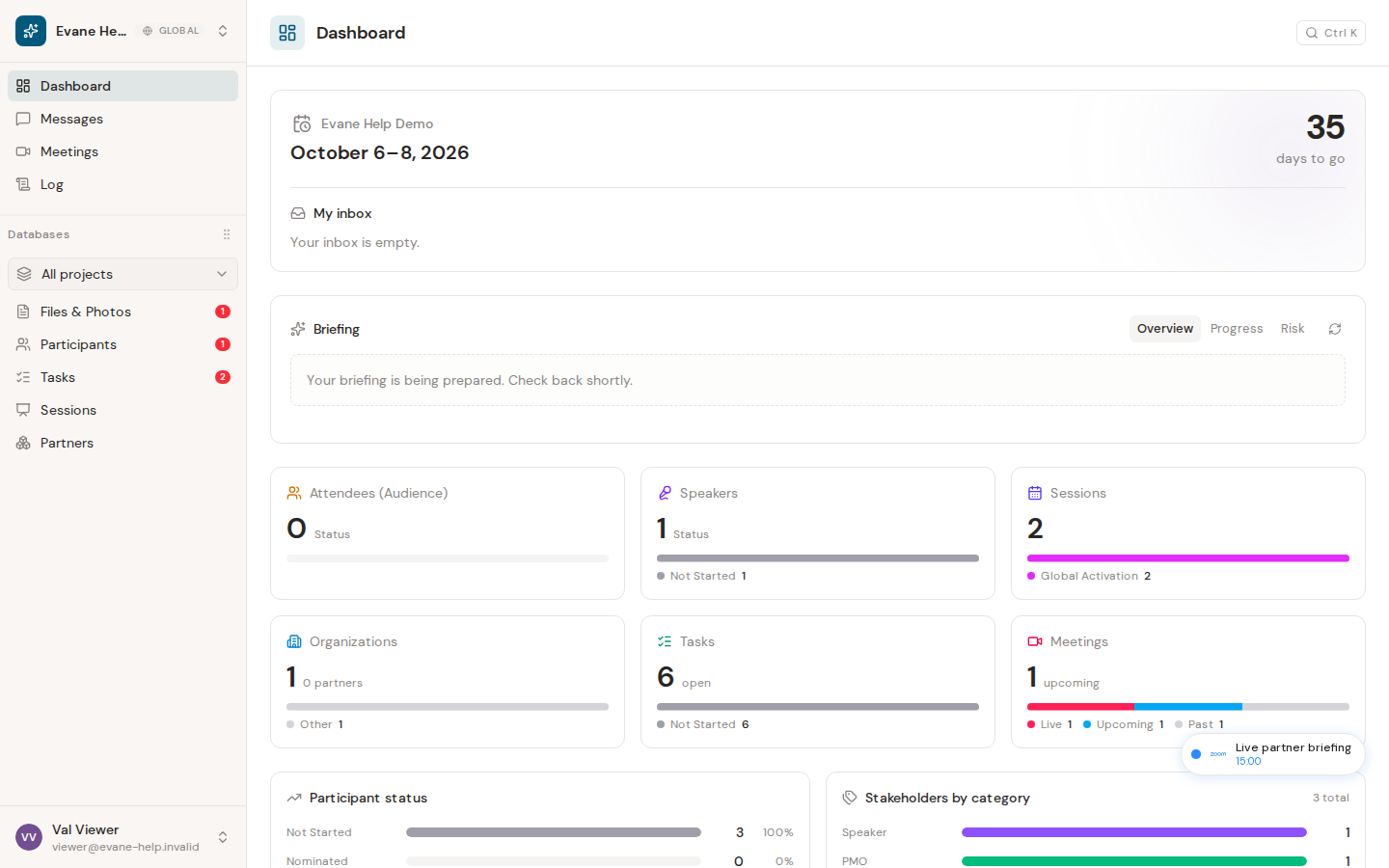
The workspace is organized around repeatable work rather than a marketing dashboard. Use the sidebar for domain views, the header for search, the Dashboard for My inbox, and the AI launcher for contextual assistance.
1. Workspace navigation
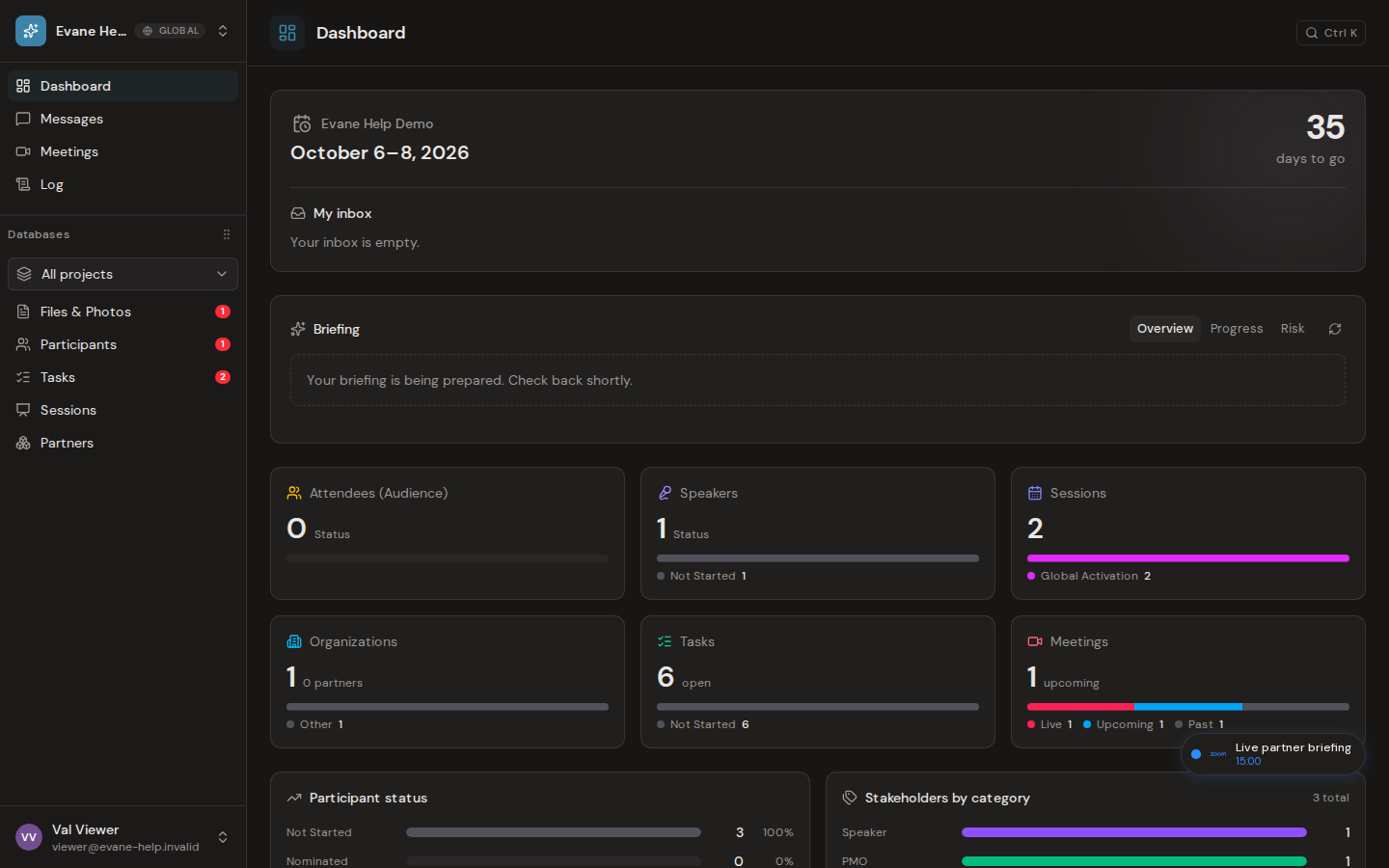
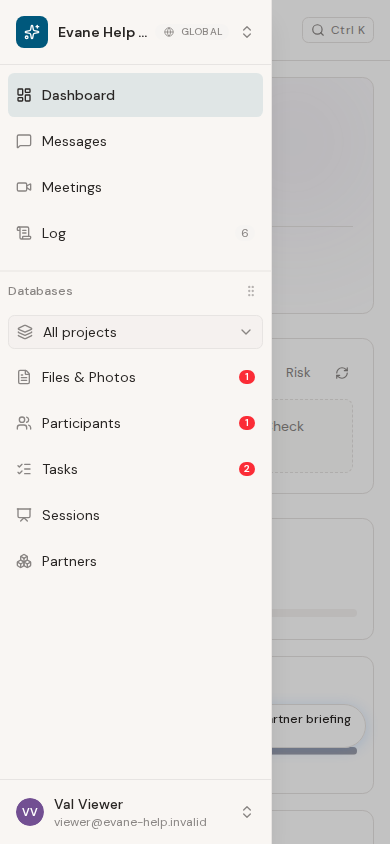
The sidebar is the main route through the workspace. It begins with the Dashboard and then shows the record types configured for that workspace, such as Participants, Partners, Tasks, Sessions, Meetings, Files, and Messages. The Log provides an activity and audit view when your role can access it.
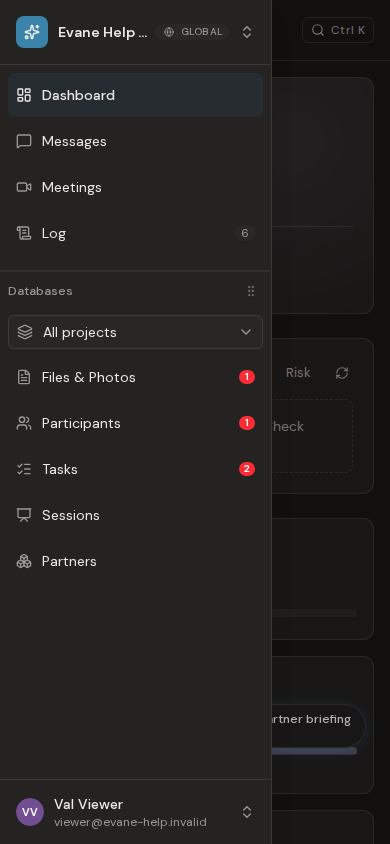
On smaller screens, open the menu button to use the same navigation in a drawer.
2. Global search and quick navigation
Use the search control in the page header to open the command palette. You can also press Command+K on macOS or Ctrl+K on Windows and Linux. Search for a view or record and choose a result to open it.
3. The AI assistant
Open the AI assistant from its launcher in the workspace. Use it to ask questions, search workspace context, draft content, plan work, or summarize information. Some actions may create a proposal for review instead of immediately changing a record.
4. Tasks and the timeline
Open Tasks to review assigned work and milestones. Where available, switch to the Gantt view to place work on the event timeline and compare dates, owners, status, and progress.
Workspace and account controls
- Select the workspace name at the top of the sidebar to switch workspaces, open workspace settings, or create a workspace.
- Select your profile at the bottom of the sidebar to change language or theme, open Help Center or Settings, or sign out.
- Use My inbox on the Dashboard to review updates and pending approvals linked to records you can access.
The items and actions you see depend on your workspace configuration and role.