



The sample workspace is a safe place to learn Evane with prepared records before entering live project data. Evane offers one or more example spaces — which ones depends on your deployment — and keeps at most one owned sample per example, so picking the same example again reopens that sample instead of creating a duplicate.
Create the sample
- Sign in and open the workspace chooser (or the + New workspace flow).
- Select Explore a sample project to reveal the example list under Or start from an example, then choose one of the example cards. If your deployment offers no examples, the same button creates the built-in sample workspace in one click.
- Wait while Evane prepares the workspace.
- Evane opens the sample when provisioning is complete.
Evane keeps at most one owned sample per example you pick: choosing the same example again returns the existing sample instead of creating a duplicate. Which examples are offered depends on your deployment.
What the sample contains
Each example card in the chooser shows its title, description, included tables, and skill count before you pick it. Every example provisions prepared, fictional records so its views are not empty — the specific tables, skills, and record types vary by example.
Suggested things to try
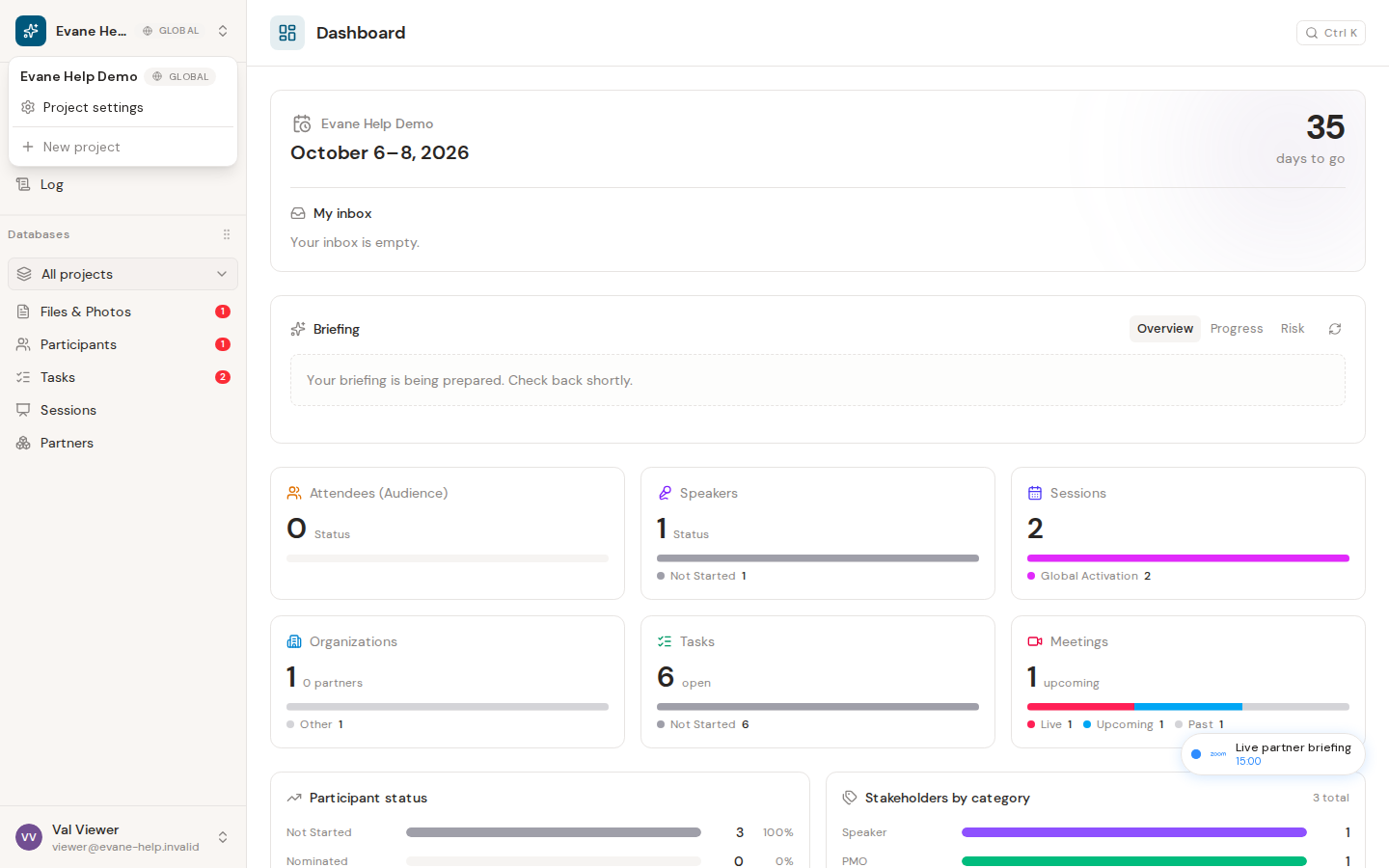
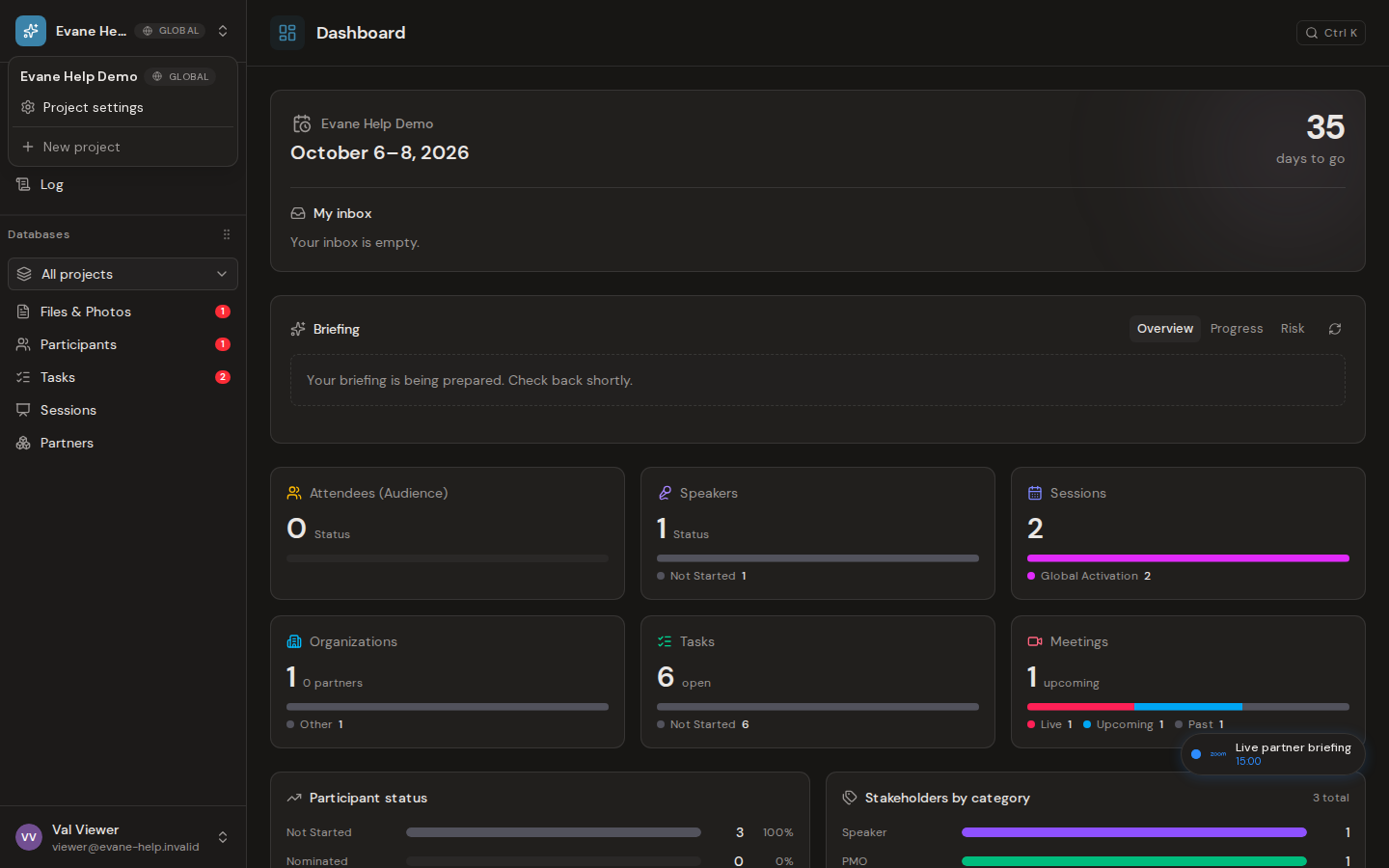
- Review the Dashboard for upcoming and attention-needed items.
- Open the example's own tables (listed on its chooser card) and inspect a record.
- If the example includes Tasks, compare the list and Gantt views.
- Ask the AI assistant to summarize the sample workspace.
AI responses depend on the AI service being available in your Evane environment.
Delete or keep the sample
You can keep the sample while you learn. After you create a real workspace, Evane may ask whether you want to remove the demo sample. Choose Delete sample to remove it or Keep it to retain it.
Deleting the sample removes that workspace and its demo records. It does not delete your real workspaces.