



Individual Participants are the people referenced by Sessions, Task ownership, Organizations, invitation letters, and other relationships. Keeping one complete profile prevents fragmented records.
Check Participant access
You need workspace write access. Viewers can open Participant records but cannot create, edit, bulk edit, or delete them.
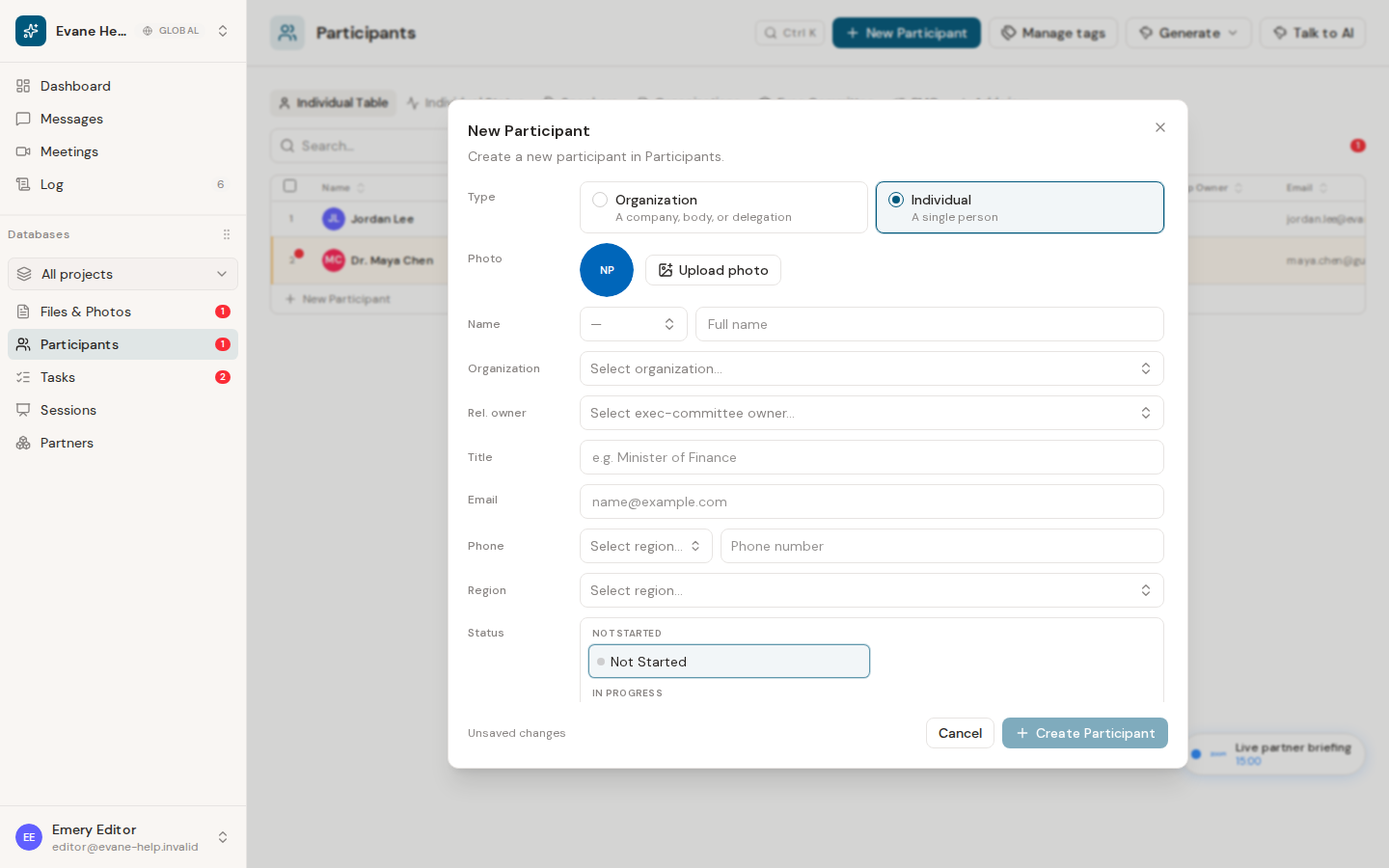
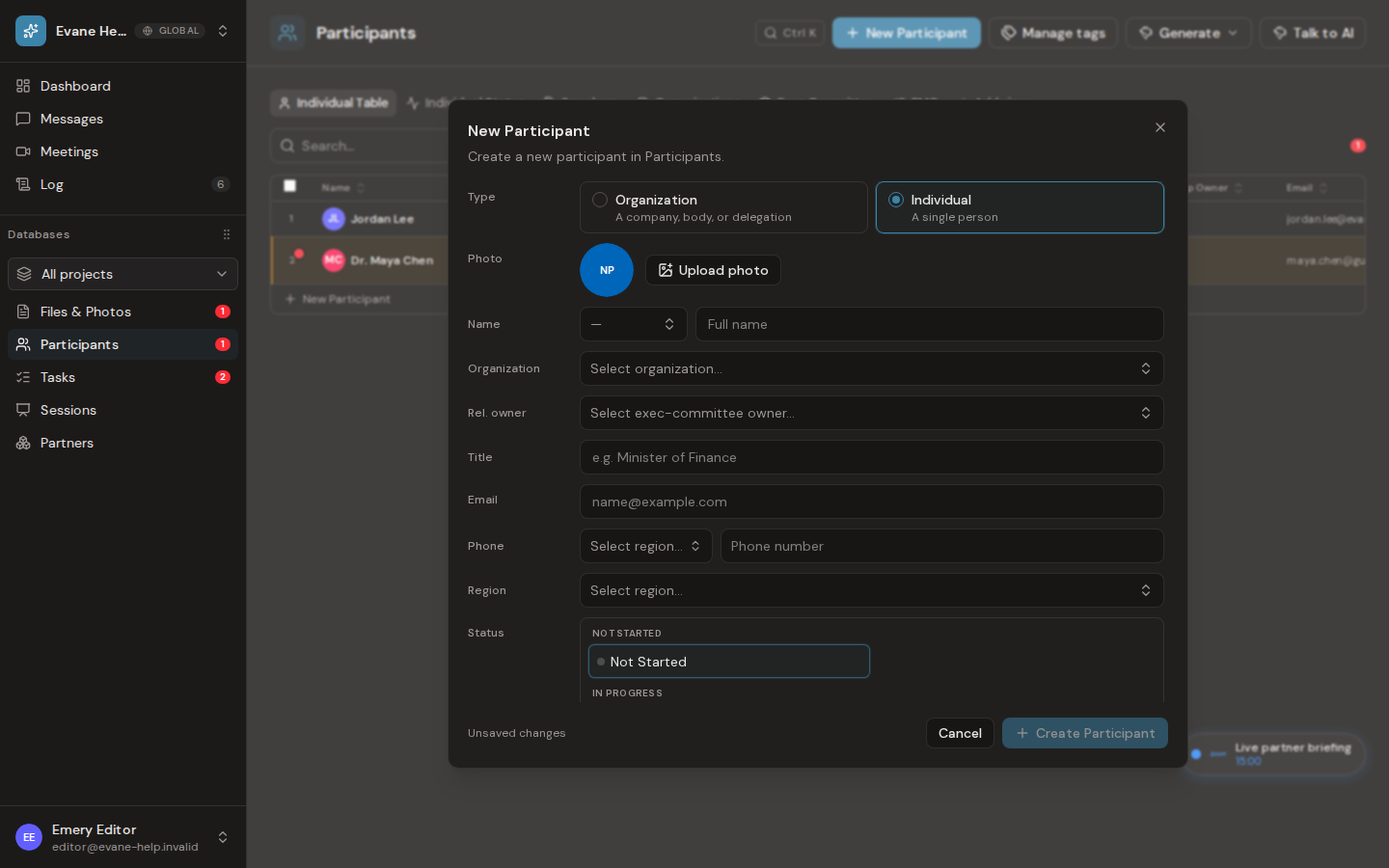
Create an individual
- Open Participants and select New Participant.
- Choose Individual.
- Enter a Name. This is the only required profile value in the form.
- Optionally add a photo, honorific prefix, Organization, Relationship Owner, Title, email, phone, Region, Status, Tags, Notes, and workspace-defined custom fields.
- Select Create.
Email is optional, but a non-empty email must be valid. Region is stored as an ISO country code. Organization selects an existing Organization-type Participant; Relationship Owner is limited to eligible Executive Committee organizations.
Update a roster with Evane AI
Attach a supported roster file in the AI assistant and ask it to compare the rows with the current Participants. Evane searches existing records before proposing a create. A confident identity match should become an update Proposal; an uncertain near match is marked for human resolution instead of being silently merged. At apply time, an AI-created Participant with the same normalized name is refused rather than duplicated.
If a person refers to an Organization that does not exist, the Organization must be created first. The assistant can place the Organization and its people in one ordered bulk Proposal so approval creates the Organization before linking the Participant. Review proposed overwrites, identities, and organization links before approval. Do not assume external facts were verified unless the answer cites a source available to the assistant.
Edit or delete a participant
Select a row to open the detail dialog. Members with write access can change fields inline and save them, or use the row edit action. To delete the Participant, use the detail dialog's delete action and confirm the second prompt.
The Participant appears in the applicable tables and remains after refresh. A successful Evane service write is audited. If the Evane service rejects an optimistic create or delete, Evane restores or removes the temporary row and shows an error.
If the record looks incomplete
Confirm that the selected Organization still exists, that the email is valid, and that any custom field is defined in the current workspace schema. Undeclared request fields are rejected rather than silently stored.