


Switching workspaces replaces the active data, role, settings, connectors, and event stream. Evane keeps the selected workspace separate so records from different projects do not mix.
What workspace switching does
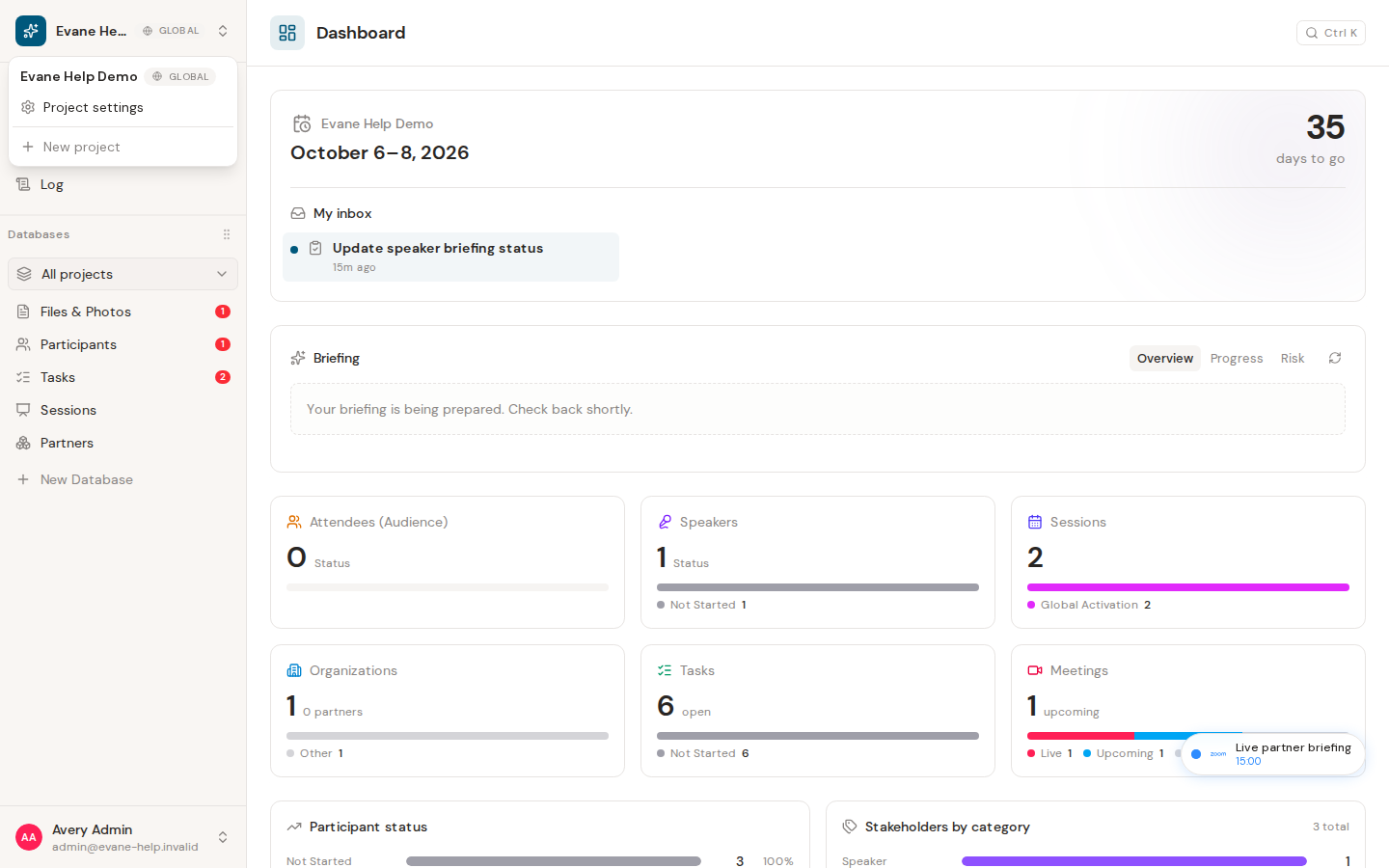
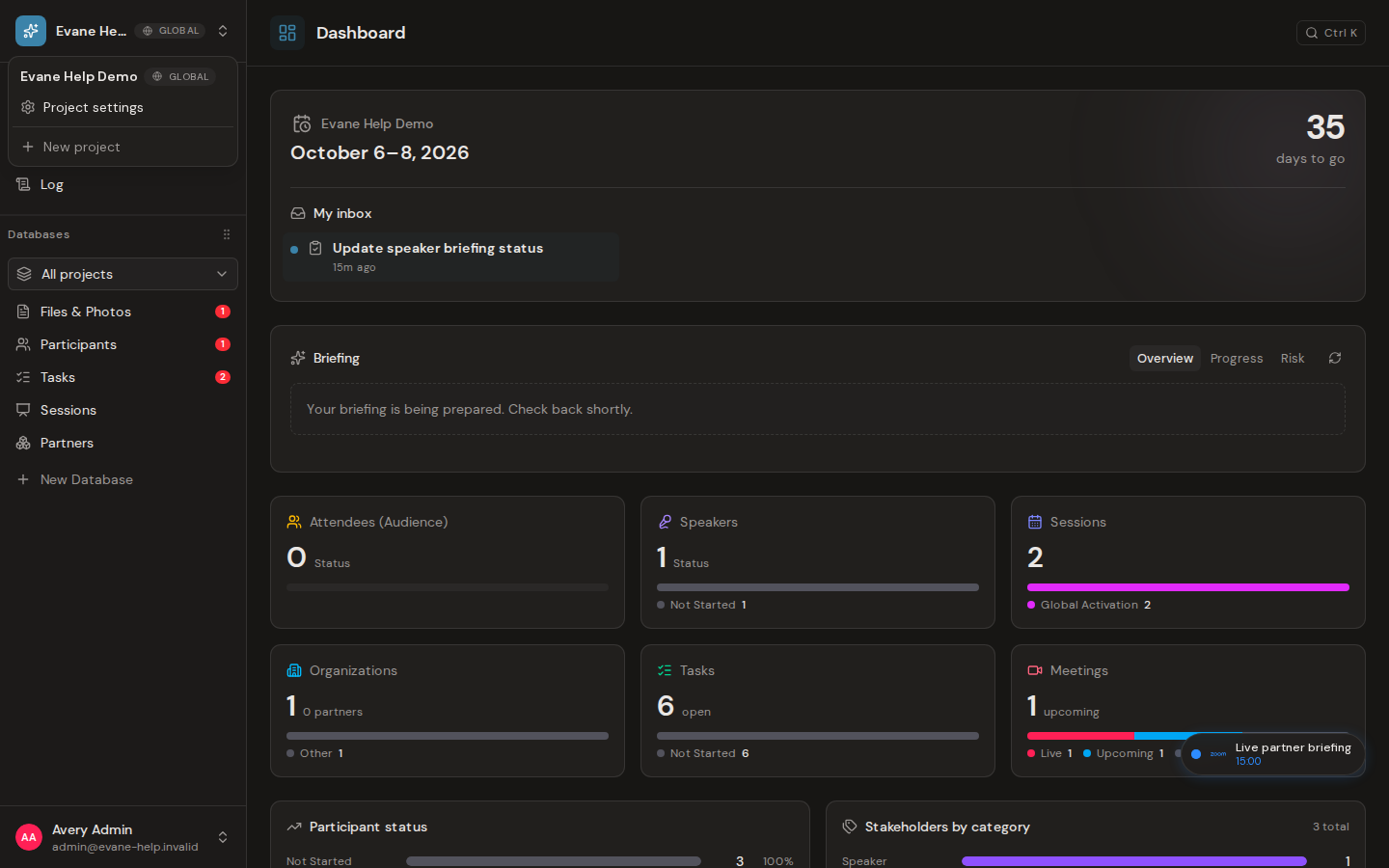
The workspace switcher lists spaces available to your signed-in account. Selecting a workspace changes the active project context and loads that workspace's records, settings, status chains, and permissions.
Switch to another workspace
- Open the workspace switcher at the top of the sidebar.
- Select a workspace from the list.
- Wait for Evane to navigate to
/spaces/{spaceId}and hydrate the new workspace. - Confirm the project name and navigation data now belong to the selected workspace.
The workspace ID in the URL is the source of truth. Evane also remembers the last valid workspace locally. If you return without a workspace ID and still belong to that workspace, Evane can reopen it automatically.
After switching, the URL, sidebar identity, permissions, and resource data all correspond to the selected workspace. Refreshing a valid /spaces/{spaceId} address keeps that workspace active.
If switching fails
- If the list is empty, check that you signed in with the intended email account and that a workspace membership or invitation exists.
- If a workspace disappears after refresh, your membership may have changed or the workspace may be in another configured region.
- If data from the previous workspace remains visible, wait for the loading state to finish. A failed hydration should show an error rather than silently presenting old data as current.