


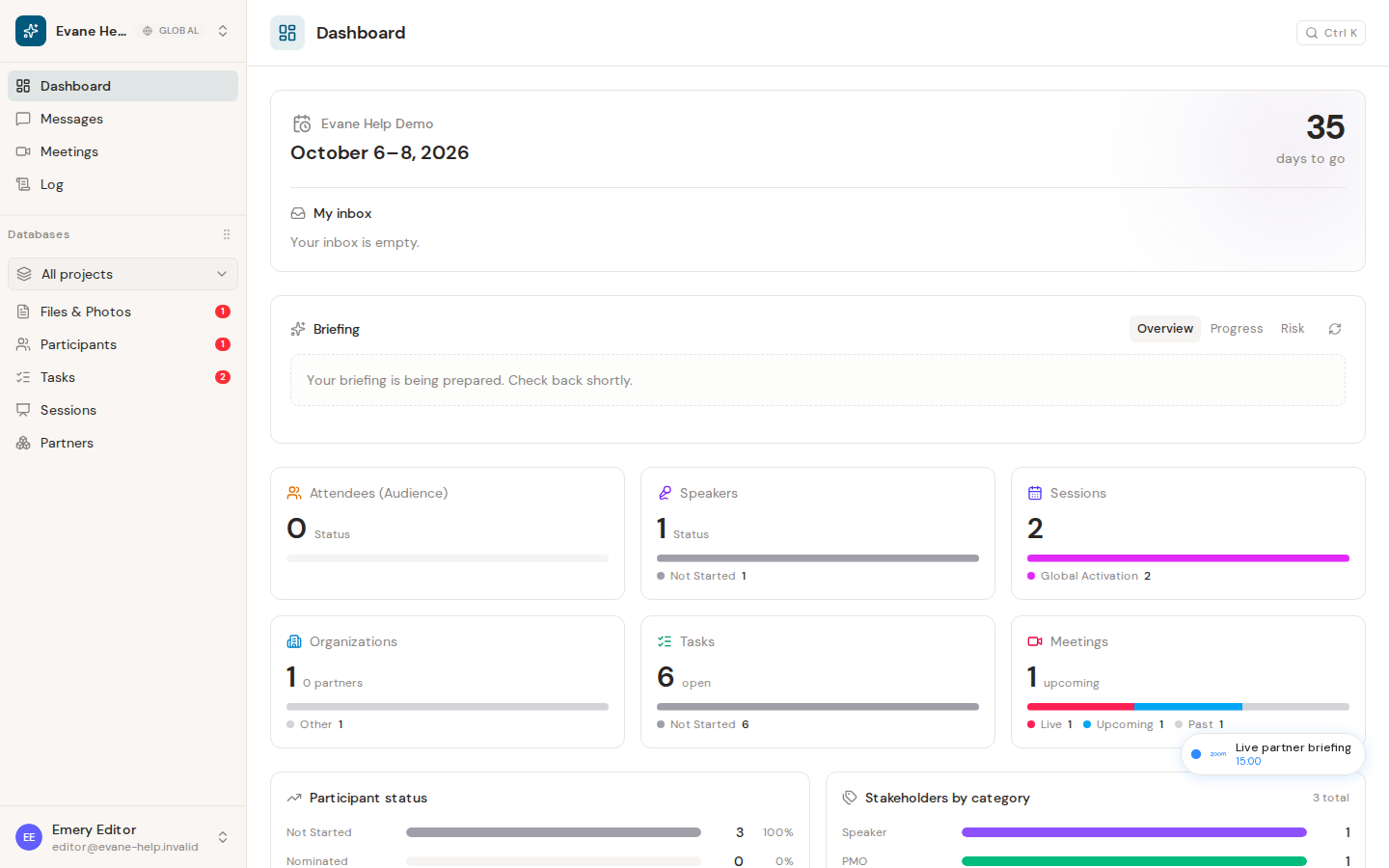
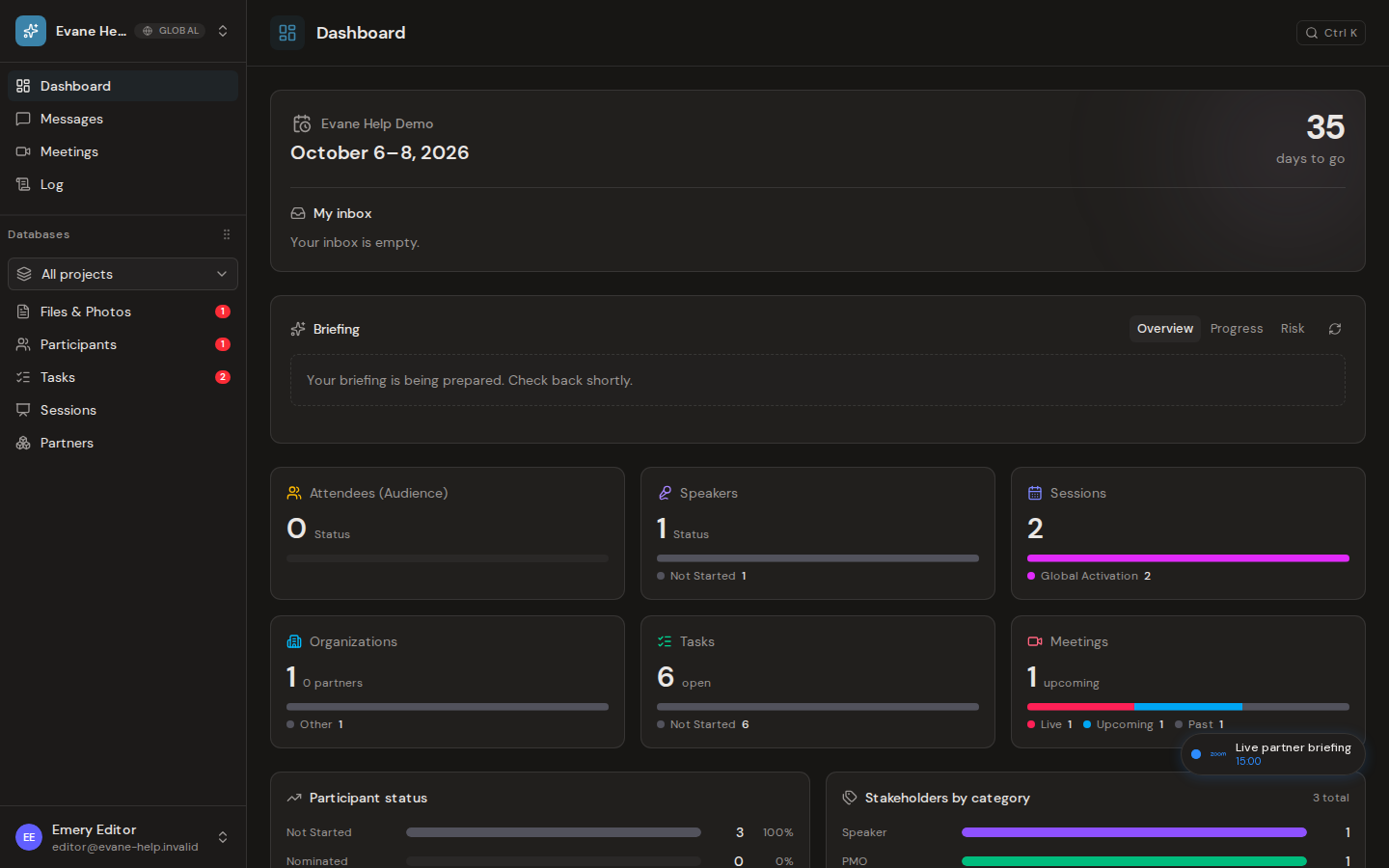
The Dashboard is a live overview of the active workspace. Its counts, upcoming work, meetings, and inbox entries come from the same records used by the detailed views.
What the dashboard is for
The dashboard is a read-only overview of the active workspace. It combines project identity and the event countdown with live totals for Participants, Sessions, Tasks, and Meetings. It also highlights records whose current status is configured as needing attention.
Check the workspace
- Sign in and enter a workspace you are allowed to view.
- Allow the initial workspace data to finish loading before comparing totals with a list page.
Any member who can open the workspace can view the dashboard. The dashboard does not grant permission to edit a record; actions after navigation still use that record's normal role checks.
Read the overview
- Open Dashboard from the sidebar.
- Check the event banner for the project name, event dates, and phase-aware countdown.
- Select a statistics card to open the matching workspace area.
- Review Needs attention. Its rows come from status stages marked as requiring attention, not from a separate manual list.
- Review meeting totals for live, upcoming, and past meetings.
- Use My inbox for your current cross-workspace notifications and pending approvals.
- In Briefing, switch between Overview, Progress, and Risk. Select a supported record link in the briefing to open its detail dialog.
The dashboard reflects Evane service-hydrated workspace data. Notification changes received by the app trigger an inbox refresh. A generated briefing shows its generation time and can be refreshed when the current role and Evane service allow it.
If data is missing
- If all panels are empty, confirm that the correct workspace is active and that the Evane service is reachable.
- If one total differs from a list, clear filters on the destination list and allow real-time updates to arrive.
- If Briefing is unavailable, the feature may not be enabled for your role or workspace. The card shows a controlled unavailable or retry state instead of fabricated content.