


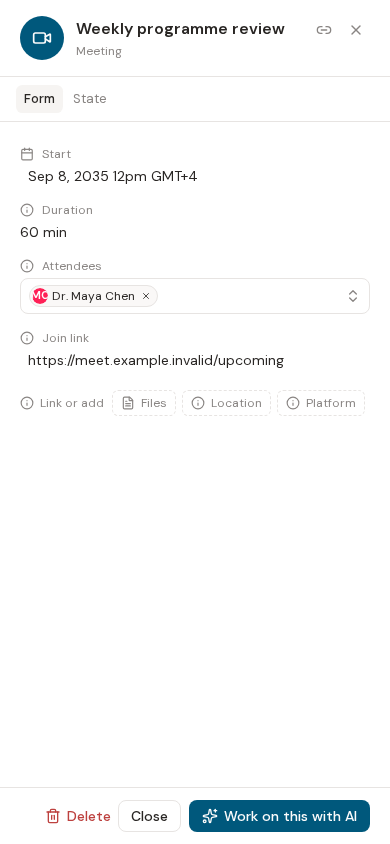
Open an Upcoming meeting to prepare the people and documents that should travel with it. These links are real workspace records and remain available when the meeting later moves to Live or Past.
Update Participants
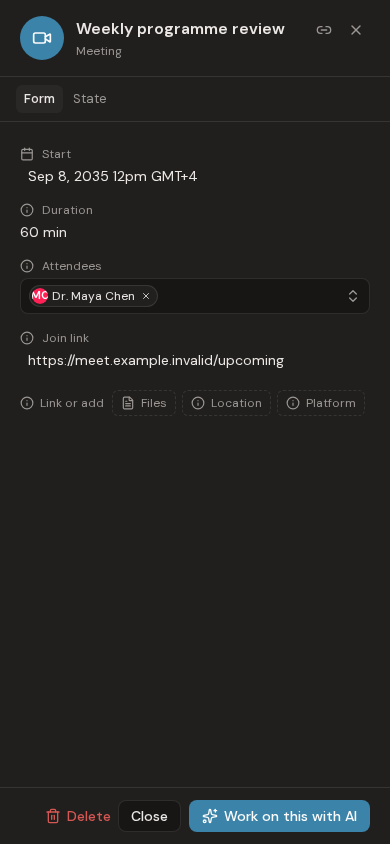
Use the Participants field to select existing Individual records, then save the Meeting. Removing a person removes only the Meeting relationship; it does not delete the Participant. The selected names appear again when the detail dialog is reopened.
Add or link files
The Files panel can upload a new Evane file or link a file already visible in the workspace library. A SharePoint, Google Drive, or Lark file remains source-owned. Removing it from the Meeting deletes only the link, not the provider document.
Opening a linked file follows the normal Files behavior: supported Markdown or local preview formats open in Evane, connected-provider files open at their source when a source URL is available, and unsupported local formats download.
You need write access to change Participants or file links. If Save is unavailable, confirm the meeting is still editable and that your current workspace role has not changed.